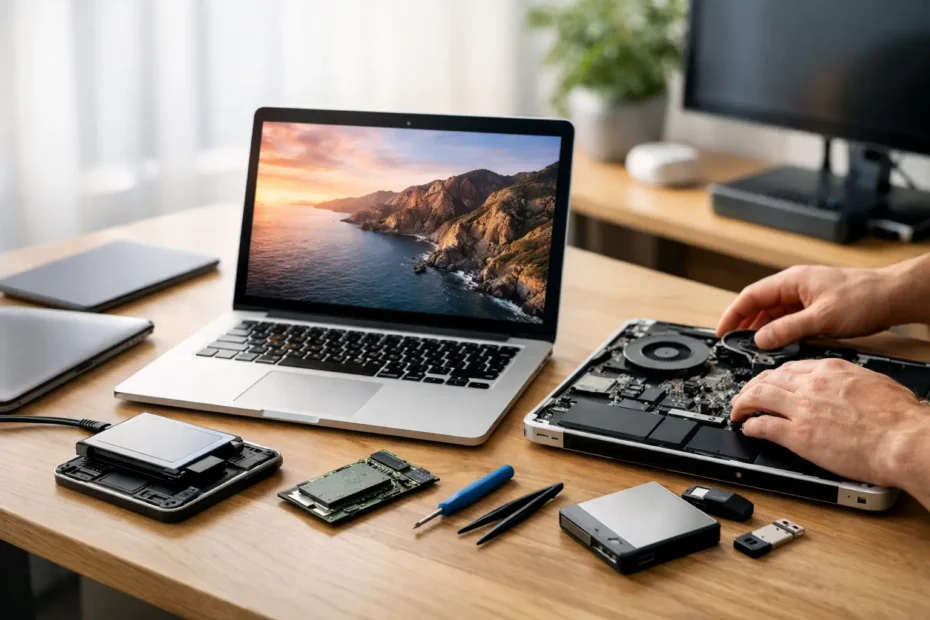
A MacBook that feels slow, runs hot, dies after an hour, or refuses to boot is not automatically ready for replacement. Some of the best ways to revive old MacBook models are surprisingly straightforward. Others require a technician who can diagnose the actual fault instead of recommending a costly full-board replacement. The right choice depends on the model, its condition, and whether the computer still supports the work you need it to do.
For many Central Florida Mac owners, an older MacBook still contains years of useful life – and years of important files. Before spending money on a new computer, start by separating normal aging from a true hardware failure.
Start With a Real Diagnosis, Not a Guess
An old MacBook can appear “slow” for several different reasons. A worn mechanical hard drive, a failing battery, a full storage drive, overheating, damaged software, and a failing logic board can all create similar symptoms. Reinstalling macOS may help one machine and do nothing for another.
Pay attention to when the problem happens. If the MacBook is slow all the time but starts normally, storage, memory limitations, or an outdated operating system may be the issue. If it shuts down under load, gets extremely hot, or only works while connected to power, suspect the battery or thermal system. If it has no power, no image, no backlight, liquid damage, or intermittent charging, it needs proper hardware diagnostics.
This is where honest repair advice matters. Replacing parts without identifying the fault can waste money and put valuable data at risk. A specialist should explain what failed, what repair options are available, and whether the investment makes sense for your specific Mac.
Replace a Failing Battery
Battery replacement is one of the most effective upgrades for a MacBook that otherwise works well. Lithium-ion batteries wear down with age and charge cycles. Common warning signs include a “Service Recommended” message, rapid battery drain, unexpected shutdowns, a swollen bottom case, or a MacBook that only runs reliably when plugged in.
A new battery restores portability, but it can also improve stability. Older batteries may struggle to deliver consistent power during demanding tasks, causing sudden shutdowns even when the battery percentage does not look critically low.
Do not ignore a swollen battery. It can push against the trackpad, keyboard, or display and cause additional damage. Shut the MacBook down and have it inspected promptly. This is not a situation for charging it overnight and hoping for the best.
Upgrade the Storage Where It Makes Sense
If your older MacBook still has a traditional spinning hard drive, replacing it with a solid-state drive can make it feel dramatically faster. Startup times, app launches, file searches, and general responsiveness improve because SSDs access data far more quickly than mechanical drives.
This upgrade is especially valuable on many older MacBook Pro and MacBook Air models. It may also create more storage space for photos, video projects, business files, and macOS updates. Before any storage work, make sure the existing drive is backed up or cloned if it is still readable. A failing hard drive can deteriorate quickly, and a routine upgrade can become a data recovery case if the drive is already unstable.
Not every MacBook has upgradeable internal storage. Many newer models use soldered SSDs, and some proprietary Apple SSD configurations require model-specific parts and experience. A good repair shop will tell you whether an upgrade is practical rather than selling a one-size-fits-all solution.
Clean the Cooling System and Renew Thermal Compound
Heat is one of the quiet reasons older MacBooks lose performance. Dust buildup in the fans and heat sink restricts airflow. Old thermal compound can dry out and transfer heat less effectively from the processor to the cooling system. The result is loud fans, a hot keyboard area, throttled performance, and sometimes random shutdowns.
Professional internal cleaning and thermal compound replacement can make a noticeable difference on older Intel-based MacBook Pros, particularly models used for video editing, music production, design work, programming, or long workdays with multiple external displays.
This service is more than blowing compressed air through a vent. Proper cleaning involves opening the machine, removing accumulated debris safely, inspecting the fans, and checking for signs of liquid residue or corrosion. If a fan is failing, cleaning alone will not solve the problem. It needs to be addressed before excess heat damages other components.
Install a Compatible macOS Version
Software support is a major part of deciding how to revive an old MacBook. An outdated version of macOS can limit browser compatibility, security updates, and newer application features. On the other hand, installing the newest operating system on unsupported hardware without preparation can create problems with graphics, Wi-Fi, sleep mode, or performance.
For supported models, a clean macOS installation can remove years of clutter, corrupted settings, and unnecessary startup items. Back up your data first, then reinstall only the apps you actually use. Keeping at least 15 to 20 percent of the storage free also helps macOS run more comfortably.
Unsupported macOS upgrades can extend the useful life of certain older Macs, but this is a case where details matter. The model year, processor, graphics hardware, available storage, and your required software all affect whether the upgrade is wise. A professional setup can include backup planning, compatibility checks, installation, and post-install testing so you do not end up with a newer system that is less reliable than the old one.
Address Keyboard, Screen, and Charging Problems Early
A cracked screen, failing keyboard, loose charging port, or damaged trackpad may not make a MacBook slow, but these problems can make it effectively unusable. They can also become worse over time. For example, a liquid-damaged keyboard may eventually affect the logic board beneath it, while a damaged display cable can cause flickering or intermittent backlight failure.
Screen replacement is often worthwhile when the MacBook has good performance and adequate battery life. Keyboard replacement can be a smart repair for a machine used daily for school or work. Charging issues require more careful testing because the cause may be the charger, battery, USB-C port, DC-in board, or logic board charging circuit.
Avoid assuming a MacBook with no power is beyond repair. Apple and many general repair shops may quote a full logic board replacement or recommend replacement of the entire computer. Component-level logic board repair can sometimes resolve damaged charging circuits, backlight faults, liquid damage, and power issues at a far more reasonable cost.
Recover Data Before the Problem Gets Worse
If your MacBook is showing a folder with a question mark, clicking from the drive, freezing during startup, or refusing to mount its storage, your first priority should be the files – not getting it running long enough to copy a few folders.
Repeated restarts, software repairs, and do-it-yourself drive swaps can make a failing storage device harder to recover. This is especially true when the MacBook contains irreplaceable client documents, family photos, accounting records, creative projects, or business files.
A technician can determine whether the issue is a damaged drive, corrupted macOS installation, failed cable, or board-level fault preventing access to otherwise healthy data. The repair path should protect the data first whenever possible.
Know When Repair Is Worth It
The best ways to revive old MacBook computers are not always the cheapest individual fixes. A $100 cleanup may not be sensible if the battery, display, storage, and logic board all need attention. But a battery replacement and SSD upgrade on a dependable older MacBook Pro can be far less expensive than replacing a computer that still meets your needs.
Consider the total repair cost, the remaining software support, your performance needs, and the value of the data already on the machine. An older Intel MacBook may be excellent for email, web work, office documents, school, and light creative tasks, while a demanding video workflow may justify moving to newer hardware.
At YourMac.Repair, the goal is repair-first advice: identify what is actually wrong, explain the options clearly, and help you decide whether repair, upgrade, or replacement is the better financial move. The right revival is the one that gives you a dependable MacBook without paying for work you do not need.
A well-maintained MacBook can keep serving you long after its first battery or operating system shows its age. Give it a proper diagnosis before you write it off – the fix may be more practical than you expect.
Need Mac or iPhone repair in Winter Garden / Orlando?
YourMac.Repair — board-level Apple repair with honest diagnosis and fast turnaround. We say YES when Apple says NO.
- Mac Logic Board Repair — liquid damage specialist
- Mac Screen Repair
- Mac Battery Replacement
- Mac & PC Data Recovery
- iPhone Screen Repair — same-day service
📞 (407) 580-9965 · WhatsApp · 819 Marsh Reed Dr, Winter Garden, FL 34787