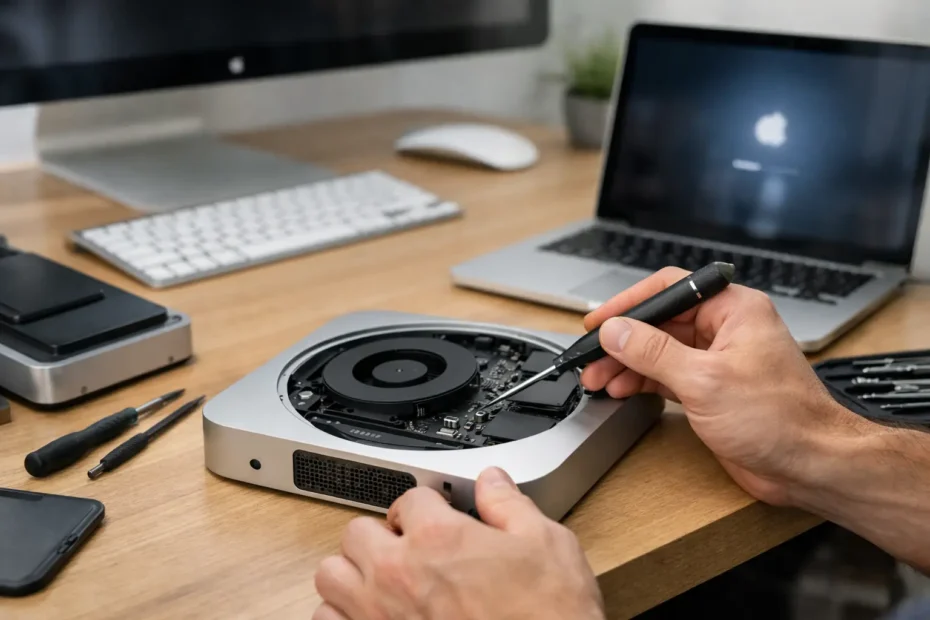
A Mac mini that will not boot can look completely dead, get stuck on the Apple logo, show a flashing folder, or restart before macOS ever loads. Those symptoms may come from a simple power issue, damaged macOS installation, failing storage, or a logic board fault. This Mac Mini boot repair guide helps you separate the safe checks you can make at home from problems that need a real diagnostic.
The first rule is simple: do not erase the Mac or repeatedly force-restart it if the files on it matter. A startup problem is not automatically a data-loss problem. In many cases, the data is still intact even when the Mac cannot reach the login screen.
Start With What the Mac Mini Actually Does
Before trying recovery tools, pay attention to the exact behavior. Does the power light come on? Does the fan run? Do you hear a startup chime on an older Intel model? Does it display an Apple logo, a question mark folder, a prohibited symbol, or a black screen?
Those details narrow the diagnosis quickly. A Mac mini with no light, no fan, and no display is different from one that reaches the Apple logo and freezes halfway through the progress bar. The first points toward power delivery, a failed internal component, or a logic board issue. The second may be related to macOS, storage, peripherals, or a hardware failure that appears only when the system starts loading.
Disconnect everything except the power cable, display, keyboard, and mouse. Remove USB hubs, external drives, Ethernet adapters, audio interfaces, printers, and other accessories. A failed peripheral or a shorted USB device can prevent a Mac from completing startup.
Also test the display connection before assuming the Mac is not booting. Try another HDMI or USB-C cable, another display input, or a different monitor if available. Apple silicon Mac minis can appear unresponsive when the actual issue is video output or a display handshake problem.
Check Power Before You Diagnose macOS
Plug the Mac mini directly into a known-good wall outlet. Avoid surge protectors and power strips for this test. Make sure the power cable is seated firmly at both ends, then leave the Mac disconnected from power for at least 30 seconds before reconnecting it.
Press the power button once, then wait. Avoid holding it down immediately unless you are intentionally shutting down a frozen machine. A normal startup can take longer after a failed update, a disk check, or a system crash.
If there is no response at all, inspect the rear power connector area for looseness, damage, or signs of liquid exposure. Do not open the Mac mini just to look around if you are not comfortable working inside Apple hardware. A liquid-damaged board can worsen when power is repeatedly applied, and an incorrect repair attempt can turn a fixable fault into a more expensive one.
Intel Mac Mini Reset Steps
For Intel-based Mac minis, a power cycle can clear some temporary startup faults. Shut the Mac down, unplug the power cord for 15 seconds, reconnect it, wait another five seconds, and press the power button.
You can also reset NVRAM by turning the Mac on and immediately holding Option, Command, P, and R for about 20 seconds. This may help with certain display, startup disk, and configuration problems. It will not repair a failed SSD, corrupt hardware firmware, or a damaged logic board.
An SMC reset is less relevant on many desktop Mac models than it was on older MacBooks, but fully removing power remains a useful first step when an Intel Mac mini does not respond normally.
Apple Silicon Mac Mini Startup Steps
On an M1, M2, or newer Apple silicon Mac mini, shut the computer down completely. Press and hold the power button until you see “Loading startup options.” From there, choose Options to enter macOS Recovery.
If Startup Options never appears, the problem may be more serious than a damaged operating system. Apple silicon Macs rely on integrated storage and security architecture, so failures involving internal storage, power rails, USB-C circuitry, or the logic board require model-specific diagnosis. There is no user-replaceable internal SSD path on these models.
Use macOS Recovery Carefully
Recovery is the right place to check the startup disk without immediately destroying data. Once you reach Recovery, open Disk Utility and choose View, then Show All Devices. You need to see the physical drive as well as its volumes to get useful information.
Run First Aid from the lowest level upward: physical disk, container, then volumes. If First Aid completes successfully, restart the Mac and see whether it boots normally. If it reports errors that cannot be repaired, do not keep rerunning it for hours. That can be a warning of failing storage or file-system damage that needs a more careful plan.
If the internal drive appears normally and the data is backed up, reinstalling macOS from Recovery can repair damaged system files without erasing personal data. Read each Recovery prompt closely. Reinstall macOS and Erase Mac are very different actions.
If the disk does not appear in Disk Utility, appears intermittently, or reports a hardware error, stop there. On an Intel Mac mini with a replaceable drive, the storage device or cable may be failing. On a newer model, missing internal storage can indicate a much deeper board-level issue.
What a Flashing Folder or Prohibited Symbol Means
A flashing folder with a question mark means the Mac cannot find a valid startup system. Sometimes the selected startup disk changed, but more often the macOS installation is damaged or the internal drive is not being read reliably.
A circle with a line through it, often called a prohibited symbol, means the Mac found a system folder but cannot use that version of macOS to boot. This can happen after an interrupted update, an incompatible installation, or corruption in the system volume.
Neither symbol proves the Mac is beyond repair. But both are reasons to avoid guessing. If you have critical business files, creative projects, or irreplaceable photos, protect the data first and decide on repair second.
When Safe DIY Steps End
A home repair approach makes sense when the Mac enters Recovery, the internal disk is visible, First Aid succeeds, and you have a current backup. At that point, reinstalling macOS or selecting the correct startup disk may solve the problem.
Professional diagnosis is the better choice when the Mac has no power, starts only sometimes, shuts off under load, cannot see internal storage, shows artifacts on screen, has liquid exposure, or loops during startup after basic checks. These symptoms can involve corroded components, failed power circuits, damaged SSD communication lines, or faults that cannot be identified by reinstalling software.
Be cautious with shops that jump straight to a full logic board replacement. In many cases, a component-level repair can address the failed circuit without replacing the entire board. The right option depends on the model, the condition of the board, the value of the Mac, and whether data recovery is part of the job.
A Better Plan for Data and Repair
If the Mac mini reaches Recovery, try to back up files before taking major repair steps. An external drive, another Mac, or a qualified data recovery process may be appropriate depending on the model and the severity of the failure. For Apple silicon systems especially, encrypted internal storage can make early, correct diagnosis essential.
Write down the exact model, year, recent update history, and anything that happened before the failure. A power outage, a drink spill, a new USB device, an unsuccessful macOS update, or a previous intermittent problem can save significant diagnostic time.
For Mac owners in Winter Garden and the Orlando area, YourMac.Repair provides direct access to an experienced technician for startup failures, storage issues, liquid damage, and component-level logic board repair. You should get a transparent diagnosis before being pushed toward an expensive replacement.
A Mac mini that will not boot is frustrating, especially when work is waiting on the other side of the login screen. Treat the symptoms as useful evidence, preserve your data whenever possible, and stop troubleshooting when the behavior points beyond a software fix. A careful repair decision can keep both the Mac and the files that matter most in service.
Need Mac or iPhone repair in Winter Garden / Orlando?
YourMac.Repair — board-level Apple repair with honest diagnosis and fast turnaround. We say YES when Apple says NO.
- Mac Logic Board Repair — liquid damage specialist
- Mac Screen Repair
- Mac Battery Replacement
- Mac & PC Data Recovery
- iPhone Screen Repair — same-day service
📞 (407) 580-9965 · WhatsApp · 819 Marsh Reed Dr, Winter Garden, FL 34787