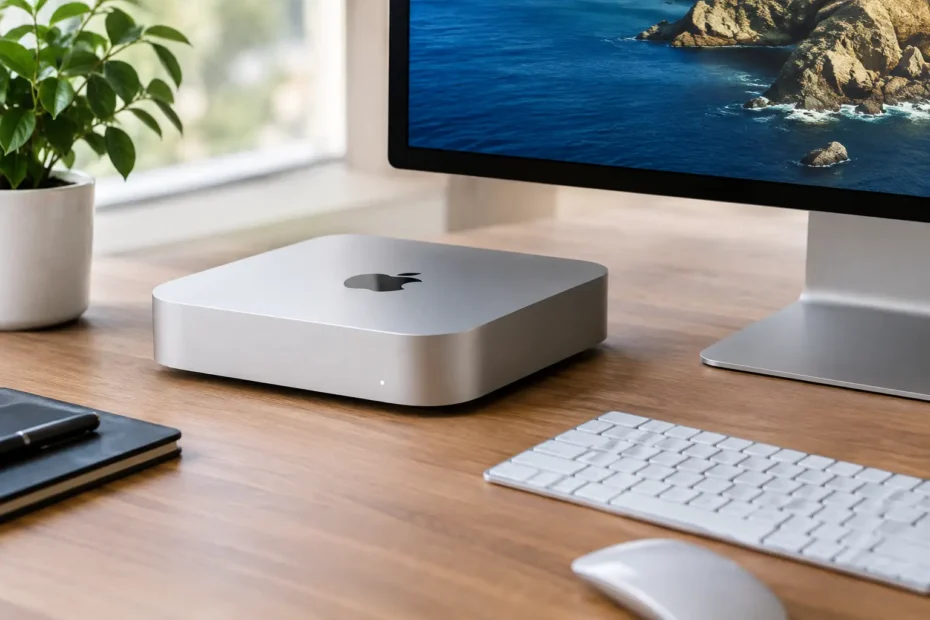
A Mac mini that used to feel instant can slowly become frustrating: apps bounce in the Dock too long, Finder stalls, video calls stutter, and the beach ball appears during ordinary work. Knowing how to speed up Mac Mini starts with separating normal aging from a correctable problem. A few settings may help, but a persistent slowdown can also point to a failing drive, excessive heat, inadequate memory, or a macOS issue that needs a proper diagnosis.
Start by identifying where the slowdown happens
Pay attention to the pattern before changing anything. If the Mac is slow only when it first starts, too many login items may be running. If it slows down while switching between browser tabs, large spreadsheets, Photoshop, or video-editing applications, memory pressure may be the limiting factor. If everything pauses when opening files or saving work, storage health deserves attention.
Open Activity Monitor from Applications > Utilities and look at the CPU, Memory, Energy, Disk, and Network tabs. You do not need to understand every process. Look for an application consuming an unusually high percentage of CPU for several minutes, or a process using an unreasonable amount of memory when it should be idle.
On the Memory tab, check Memory Pressure. Green generally means the system has enough available memory. Yellow or red means macOS is relying heavily on swap memory, which uses the internal drive as temporary memory and can make the computer feel noticeably slower. Closing unused apps may help in the moment, but repeated memory pressure usually means your workload has outgrown the Mac’s installed RAM.
Free space matters more than most Mac mini owners expect
A nearly full internal drive is one of the most common causes of a sluggish Mac. macOS needs working room for swap files, temporary files, updates, caches, and app data. When available space gets too low, even a Mac mini with a fast SSD can hesitate during basic tasks.
Check available storage in System Settings > General > Storage. There is no single perfect number, but leaving at least 15% to 20% of the drive free is a sensible target. On a 256GB Mac mini, that space disappears quickly once photos, iPhone backups, music libraries, and creative projects start accumulating.
Remove old installers, duplicate downloads, unused applications, and completed project files you have safely backed up. Move large media libraries and archives to a quality external SSD if they do not need to live on the internal drive. Do not randomly delete files from Library folders just because they look large. Cache files can return, and deleting the wrong support files can create a new problem without improving performance.
If the storage report shows a huge amount of System Data, restart the Mac first and give it time to complete background indexing. If the number remains excessive or the computer is still slow, the cause may be a damaged user profile, runaway cache, backup snapshot, or software conflict rather than simple clutter.
Reduce startup items and background activity
Many slow Macs are not underpowered. They are simply trying to launch too much at once. Cloud storage utilities, messaging apps, menu-bar tools, printers, VPN clients, antivirus products, Adobe services, and browser helpers can all load when you sign in.
Go to System Settings > General > Login Items. Remove applications you do not need immediately after startup, especially under Allow in the Background. This does not uninstall the app. It only stops it from automatically using resources every time you turn on the Mac.
Be selective. A business backup tool or security application may be necessary, and disabling it blindly can create risk. The goal is to remove convenience software you rarely use, not to disable services you depend on.
Browser extensions deserve the same scrutiny. One poorly made extension can consume CPU, cause browser crashes, or make every tab feel slow. Disable extensions you do not recognize or no longer need, then test the browser again before reinstalling anything.
Update macOS and apps, but do it strategically
A current macOS version can improve compatibility, security, and performance, particularly when an application has been updated for Apple silicon. App updates can also resolve memory leaks and high CPU usage that look like hardware problems.
That said, the newest macOS is not automatically the best choice for every Mac mini. Older Intel models may run a newer version, but performance can depend on the processor, installed memory, graphics demands, and the software you use every day. Major upgrades also need free storage and a reliable backup before you begin.
If an older Mac mini is stuck on an unsupported macOS version, there may be options to extend its useful life. Unsupported macOS upgrades require realistic expectations and careful setup, especially when specific drivers, legacy software, or business applications are involved. It is a technical decision, not a one-click cure for every slow Mac.
Check for heat and dust before assuming the Mac is failing
A Mac mini has a small enclosure, and heat affects performance. When internal temperatures rise, the processor reduces speed to protect itself. You may notice fans running more often, a hot case, slow exports, or lag that gets worse during long work sessions.
Make sure the Mac has open airflow around it. Do not stack it on top of a warm cable box, hide it in a sealed cabinet, or block its vents with papers and equipment. If it sits in a dusty home office, pet-friendly workspace, or shop environment, internal dust buildup can restrict cooling over time.
For older Intel Mac minis, worn thermal compound and clogged cooling components can contribute to heat-related slowdowns. Proper internal cleaning and thermal service can make a meaningful difference when overheating is the actual problem. It will not fix a weak drive or insufficient RAM, which is why diagnosis comes first.
Know what can be upgraded on your model
The right hardware upgrade depends entirely on the generation of Mac mini. Many older Intel models can benefit dramatically from an SSD upgrade, especially if they still use a mechanical hard drive or a failing Fusion Drive. Replacing a slow hard drive with a quality SSD often produces the largest real-world improvement: faster startup, faster app launches, and quicker file access.
Some Intel Mac mini models also allow memory upgrades. More RAM can help users who routinely run many browser tabs, virtual machines, design software, music-production tools, or several business applications at the same time.
Newer Apple silicon Mac minis are different. Their memory and internal storage are integrated, so they are not practical upgrades after purchase. If a newer M-series Mac mini feels slow, the solution is more likely to be storage management, an app conflict, background activity, macOS repair, or a hardware fault. External SSD storage can still help relieve a crowded internal drive, but it does not add RAM.
When a slowdown points to a repair issue
Repeated freezing, unexpected restarts, files that take forever to open, kernel panics, startup failures, and a Mac that only performs well after a restart are not issues to ignore. A degrading SSD, drive cable problem on certain older models, liquid damage, failing power circuitry, or logic board fault can begin as intermittent slowness before becoming a no-start situation.
Run Disk Utility and use First Aid on the startup volume. It is a reasonable first check, but a pass does not prove every hardware component is healthy. Back up important files immediately if the Mac begins showing unpredictable behavior, especially if you hear unusual drive noises from an older hard drive or see repeated disk-related warnings.
Avoid repeatedly reinstalling macOS or running aggressive cleaner apps when the symptoms suggest failing hardware. Those steps can consume time, complicate data recovery, and mask the original issue. A technician who can test the storage, cooling, power behavior, and logic board can tell you whether repair is worthwhile before you spend money on replacement parts.
How to speed up Mac Mini without wasting money
Start with available storage, login items, Activity Monitor, and a normal restart. Those checks are free and often reveal the cause. If the slowdown remains, consider the age and model of the Mac before buying software or accessories. An older Intel Mac mini may be an excellent candidate for an SSD, memory upgrade, internal cleaning, or thermal service. A newer Apple silicon model needs a different troubleshooting path.
For Mac owners in Central Florida, YourMac.Repair can provide direct, specialist-level diagnosis when basic cleanup has not solved the problem. The useful answer is not always replace it. Sometimes it is a focused repair or upgrade that gives a dependable Mac mini several more productive years.
Need Mac or iPhone repair in Winter Garden / Orlando?
YourMac.Repair — board-level Apple repair with honest diagnosis and fast turnaround. We say YES when Apple says NO.
- Mac Logic Board Repair — liquid damage specialist
- Mac Screen Repair
- Mac Battery Replacement
- Mac & PC Data Recovery
- iPhone Screen Repair — same-day service
📞 (407) 580-9965 · WhatsApp · 819 Marsh Reed Dr, Winter Garden, FL 34787