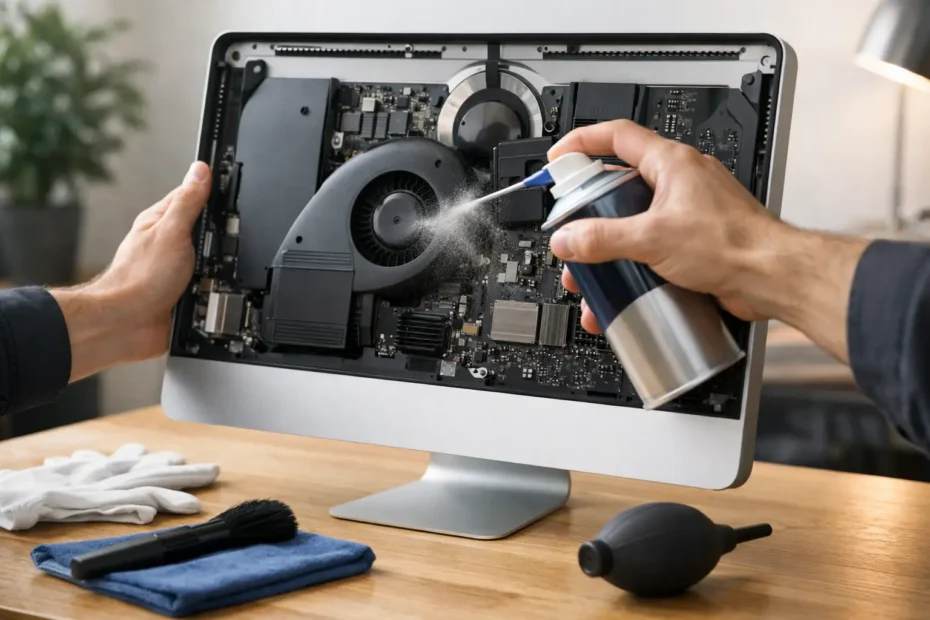
Your iMac should not sound like it is preparing for takeoff every time you open a few tabs or start a video call. If the fans are constantly loud, the back feels unusually hot, or performance drops when the system warms up, dust buildup is one of the first things to consider. Knowing how to clean overheating iMac safely can lower temperatures, reduce fan noise, and help the machine last longer – but only if you do it the right way.
This is where many people get into trouble. An iMac is not a desktop tower with easy side-panel access. The display, internal cables, fan connectors, and logic board all sit in a tighter, more delicate layout. A rushed cleaning can turn a maintenance job into a screen replacement, cable damage, or worse, a no-power board repair.
Why iMacs overheat in the first place
Heat by itself is normal. iMacs generate it under load, especially during photo editing, video work, Zoom calls, software updates, and multitasking. The real problem starts when the cooling system cannot move that heat out efficiently.
Dust is the most common reason. It collects along intake paths, fan blades, vents, and heatsink fins. Once that layer builds up, airflow drops and the fan has to work harder for less cooling. Over time, temperatures rise faster and stay higher.
That said, dust is not always the whole story. An overheating iMac can also point to failing fans, dried thermal compound, sensor issues, background software activity, malware, or a logic board fault. Cleaning helps when airflow is the issue. It will not fix every heat-related symptom.
Before you clean overheating iMac hardware, check the risk level
There is a big difference between external cleaning and internal cleaning. External cleaning is safe for most owners. Internal cleaning depends heavily on the iMac model and your comfort level.
Older iMacs with magnetic glass or more serviceable designs are still delicate, but they are more forgiving than slim models where the display is adhered to the chassis. On many newer iMacs, getting inside means cutting the display adhesive, lifting the screen carefully, and disconnecting fragile cables without cracking the panel. That is not a casual first DIY project.
If your goal is basic maintenance, start with the lowest-risk steps first. If the machine is still overheating after that, or if opening it requires display removal, professional service is usually the safer and less expensive choice.
How to clean overheating iMac safely from the outside
Start by shutting the iMac down completely. Unplug the power cord and any accessories. Let it cool for at least 20 to 30 minutes if it has been running hot. Cleaning a warm machine is not ideal, and spinning fans or active components add unnecessary risk.
Move the iMac to a stable, well-lit workspace. You want enough room to tilt it slightly and inspect the vents. Use a soft microfiber cloth to wipe the exterior, especially around the stand, rear housing, and vent openings. If there is packed dust near the vents, loosen it gently rather than forcing it inward.
Compressed air can help, but this is where people often overdo it. Use short, controlled bursts from a reasonable distance. Do not jam the nozzle directly into the vent. Do not shake the can while using it. Most importantly, do not let the fans overspin from the airflow. A fan forced to spin too fast can be damaged or send voltage back into the board.
If you can access the vent slots well enough, angle the air so dust exits the machine instead of being driven deeper inside. It may take several light passes. Patience matters more than pressure.
Tools that are generally safe – and what to avoid
For external cleaning, keep it simple. A microfiber cloth, soft anti-static brush, and proper compressed air are usually enough. If the outside has grime, use a slightly damp cloth with water only, then dry it immediately.
Avoid household vacuums on internal openings. They can create static and can be too aggressive around sensitive components. Avoid canned air used upside down, which can release propellant. Avoid cotton swabs deep inside vents, where they can snag or leave fibers behind. And avoid any liquid cleaner near vent openings.
One more point that matters: never spray anything directly onto the iMac.
When internal cleaning makes sense
If your iMac has years of dust buildup, smoker residue, pet hair, or has been used in a warm environment, external cleaning may not be enough. In those cases, the fan and heatsink area may be clogged internally, and that restriction will keep causing heat issues.
This is also where the repair risk jumps. On many slim iMacs, opening the machine means separating the display from the housing adhesive, then disconnecting display cables with careful handling and correct tool use. Once inside, proper cleaning includes more than just blowing dust around. The goal is to remove buildup from the fan blades, vent paths, and heatsink fins without damaging connectors, sensors, or the display assembly.
If you are experienced with electronics disassembly, have the right tools, and know your model-specific procedure, internal cleaning can be done safely. If you are not fully confident, this is the point to stop. A professional internal cleaning is usually far cheaper than fixing a cracked display or torn cable.
Signs the problem is more than dust
A clean iMac can still overheat. If temperatures rise fast even after airflow is restored, something else may be going on.
Watch for a fan that is silent when it should be running, a fan that makes grinding noise, sudden shutdowns, or severe slowdown with light tasks. Those symptoms can point to fan failure, sensor problems, or thermal compound that has dried out and stopped transferring heat effectively from the CPU or GPU to the heatsink.
Software can also be part of it. If Activity Monitor shows a runaway process using major CPU resources all the time, cleaning will not solve the heat until the underlying software issue is addressed. The same goes for aging hard drives, failing components, or board-level faults.
Should you replace thermal paste yourself?
Sometimes, yes. Often, no.
Replacing thermal compound can make a real difference on older Intel iMacs, especially when the original material has dried out after years of use. But it is not a beginner maintenance step. It requires disassembly, proper cleaning of the old compound, careful application of the new material, and correct reassembly pressure. Too much paste, too little paste, or poor contact can make temperatures worse instead of better.
If your iMac is already open for a full internal service, thermal paste replacement may be worth considering. If you are opening it for the first time and your only plan is “see what happens,” it is better to leave that part to a technician.
A practical standard for safe DIY cleaning
If you want the safest version of DIY maintenance, use this standard: clean the exterior, clear the vents gently, monitor fan behavior and temperature afterward, and stop before opening any display-bonded iMac unless you have model-specific experience.
That approach handles the low-risk maintenance most owners can do without gambling the machine. It also helps you separate a simple airflow problem from a deeper hardware issue.
For users in Central Florida, where heat and dust can be a rough combination for always-on machines, regular preventive cleaning matters even more. An iMac in a home office, salon, studio, or retail space can collect far more debris than most people realize.
When it is smarter to bring it in
If the iMac is still overheating after gentle external cleaning, if the fan noise is abnormal, if performance tanks under light use, or if the machine shuts down from heat, it is time for proper diagnostics. At that point, guessing costs more than testing.
A specialist can tell you whether the issue is simple dust, a failing fan, dried thermal compound, a blocked heatsink, or something on the logic board side. That matters because the fix should match the real failure, not just the symptom. Shops that do true repair-first work can often save an iMac that other places write off too quickly.
At YourMac.Repair, that kind of hands-on diagnosis is exactly the point. You are not trying to buy another few weeks before a bigger failure. You are trying to keep a valuable Mac running properly without unnecessary replacement.
If you remember one thing, make it this: cleaning helps, but careful cleaning helps. A cooler iMac is good. A cooler iMac that still has an intact display, healthy fan, and undamaged logic board is better.
Need Mac or iPhone repair in Winter Garden / Orlando?
YourMac.Repair — board-level Apple repair with honest diagnosis and fast turnaround. We say YES when Apple says NO.
- Mac Logic Board Repair — liquid damage specialist
- Mac Screen Repair
- Mac Battery Replacement
- Mac & PC Data Recovery
- iPhone Screen Repair — same-day service
📞 (407) 580-9965 · WhatsApp · 819 Marsh Reed Dr, Winter Garden, FL 34787