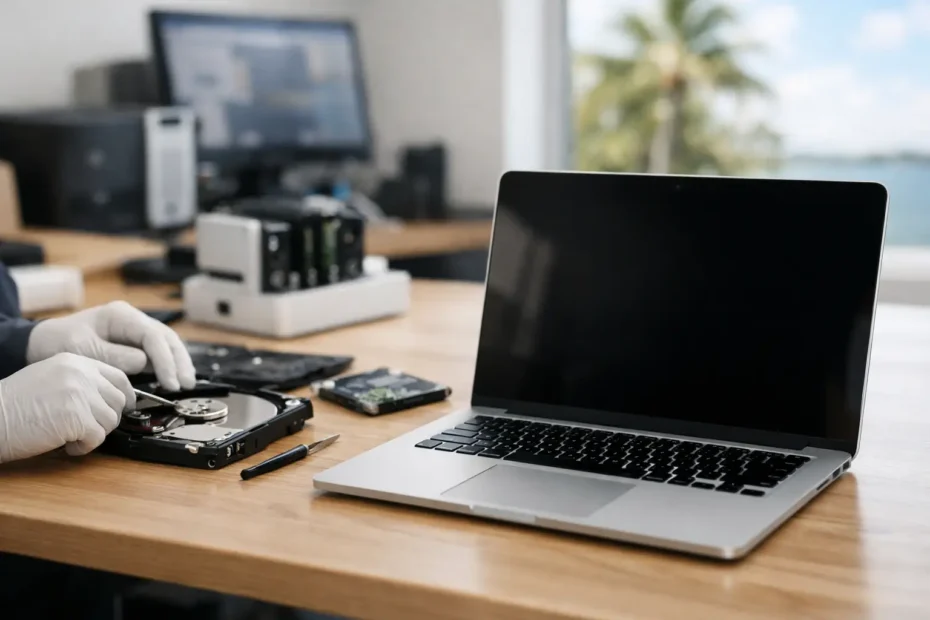
A Mac that will not start can turn an ordinary workday into an emergency. Your client files, family photos, accounting records, music projects, or school assignments may still be on the drive, even when the screen stays black. Central Florida data recovery is not just about copying files from a working computer. It is about determining what failed, protecting the storage from further damage, and choosing the safest path to retrieve what matters.
The biggest mistake is treating every Mac failure as a simple software problem. Repeated restarts, random repair utilities, and do-it-yourself disassembly can turn a recoverable situation into a much harder one. The right approach depends on the Mac model, the type of storage inside it, and whether the failure started with a spill, a fall, a macOS issue, or a logic board problem.
When a Mac Failure Is Really a Data Emergency
Some failures are obvious. A MacBook was exposed to coffee, stopped charging, and will not power on. An iMac suddenly displays a folder with a question mark. A MacBook Pro starts but freezes before the desktop appears. Others are less clear: the machine is unusually slow, files are disappearing, or Disk Utility reports errors it cannot repair.
These signs do not always mean the data is gone. They do mean it is time to stop using the Mac as if nothing happened. Continued use can write new data over deleted files, stress a weakening drive, or worsen corrosion after liquid damage.
Modern Macs make this especially important because many models use soldered storage. On numerous MacBook Air, MacBook Pro, Mac mini, and Mac Studio models, the SSD cannot simply be removed and connected to another computer. Data access may depend on restoring power to the original logic board long enough to communicate with the storage. In those cases, a replacement logic board can solve the computer problem while doing nothing for the data left on the original board.
The First Steps After a Mac Stops Working
Start by preserving the condition of the device. If the Mac was exposed to liquid, shut it down if it is still on, disconnect power, and do not charge it. Liquid damage does not improve with time or heat. Current moving through a wet or corroded board can cause additional damage.
If the Mac is making clicking sounds, repeatedly restarting, or failing to mount an external drive, avoid repeated boot attempts. A traditional hard drive with mechanical failure can deteriorate quickly. A failing SSD may also become less stable with every read attempt.
For a Mac that still starts, create a backup immediately if the storage appears healthy enough to read. Time Machine, a manual copy to an external drive, or targeted copying of irreplaceable folders can help. Do not begin with a major macOS update, factory reset, or erase-and-reinstall process. Those actions may remove the very evidence and files you need to recover.
If FileVault encryption is enabled, keep the Mac login password and any recovery key available. Encryption is excellent for privacy, but it means recovered data may be unreadable without the proper credentials. A qualified technician can diagnose the hardware, but no legitimate recovery process bypasses encryption without authorization information.
Why Central Florida Data Recovery Requires Mac-Specific Diagnosis
The word recovery covers several very different jobs. A Mac that will not boot because of damaged macOS files may allow data extraction through recovery tools or an external boot environment. A Mac with a failing drive may require careful cloning before file repair begins. A Mac with a dead logic board and soldered storage may need component-level repair before the data can be accessed at all.
That distinction matters because the wrong repair decision can be expensive. Apple and many retail repair channels often address a no-power Mac by replacing a major assembly or the entire logic board. That can be appropriate when the goal is simply to return the computer to service. It is not always appropriate when the original board contains the only accessible copy of your data.
A specialist should first identify whether the issue is related to storage, power delivery, display output, charging, the operating system, or the logic board itself. A Mac with no image is not necessarily a Mac with no data. A Mac with no power may have a repairable short, failed charging circuit, damaged backlight circuit, or corrosion that can be treated before it reaches the storage components.
At YourMac.Repair, customers work directly with Eduardo, a specialist with more than 30 years of Apple experience. That direct diagnosis matters when the conversation needs to focus on preserving files first, not simply replacing the device or its most expensive parts.
Recovery Options Depend on the Failure
Software corruption and startup errors
If a Mac shows a flashing folder, kernel panic, spinning progress bar, or repeated startup failure, the storage may still be physically sound. The first priority is usually to assess whether the internal drive is visible and whether critical files can be copied without modifying the original data.
Sometimes a macOS reinstall is the right fix. Sometimes it is not. If the files are already backed up and the drive tests healthy, reinstalling macOS may be reasonable. If the files are not backed up, recovery should come before any erase, reinstall, or disk repair that changes the volume structure.
Failing hard drives and SSDs
Older Macs may contain mechanical hard drives, which can fail through worn components, bad sectors, or physical shock. They often provide warning signs: beachballing, loud clicking, folders taking a long time to open, and frequent crashes. Once a drive starts failing, a full backup can be riskier than a carefully managed clone because every read places more demand on unstable hardware.
SSDs fail differently. There may be no noise and little warning. A Mac may suddenly stop recognizing its internal storage, display errors during startup, or become read-only. Professional diagnosis can determine whether the issue is the SSD itself, its connection, the storage controller, or a board-level fault.
Liquid damage and no-power Macs
Spill damage is where repair-first thinking can make the greatest difference. Even a small amount of liquid can create corrosion around power circuits and data-related components. Rice, hair dryers, and leaving the Mac in the sun are not repairs. Heat can warp components, while residue remains on the board.
Prompt internal inspection, cleaning, and board-level diagnosis can sometimes restore enough function to retrieve data and, in many cases, save the Mac itself. The outcome depends on where the liquid reached, how long the device remained powered, and whether corrosion damaged critical circuits. No honest technician should guarantee recovery before evaluating the hardware.
What to Ask Before You Approve a Repair
When files are valuable, ask whether the diagnostic process will preserve the original storage and logic board. Ask whether the shop is proposing a repair to access data, a drive clone, file-level recovery, or a full hardware replacement. Those are not interchangeable services.
You should also ask what happens if the recovery attempt is unsuccessful. A clear process explains the diagnostic fee, the likely repair path, the risks, and whether you will be contacted before work moves beyond evaluation. Transparent answers are a good sign, especially when the Mac contains business records or personal files that cannot be replaced.
Price should be considered in context. A low-cost attempt that overwrites data or replaces a soldered-storage logic board may cost far more than a careful diagnosis. At the same time, not every aging Mac is worth an extensive recovery effort. If the files are backed up, replacement may be the smarter financial choice. If the files are the only copy of years of work, targeted repair can be far more valuable than the computer itself.
Protect the Data After It Is Recovered
Recovery is a second chance, not a backup plan. Once files are accessible again, keep at least two additional copies: one local backup that is easy to restore from and one separate copy stored away from the Mac. For many owners, that means Time Machine on a reliable external drive plus a separate cloud or off-site backup.
Check that backups actually contain the folders you care about. Photos libraries, desktop files, project folders, email archives, and application-specific databases are easy to overlook. If a Mac begins acting strangely, back up the priority files before troubleshooting. That one habit gives you more options and less pressure if hardware repair becomes necessary.
A failed Mac does not automatically mean failed data. Stop experimenting, keep the device in its current condition, and get a clear diagnosis from someone who understands how Apple hardware, encryption, storage, and board-level faults work together.
Need Mac or iPhone repair in Winter Garden / Orlando?
YourMac.Repair — board-level Apple repair with honest diagnosis and fast turnaround. We say YES when Apple says NO.
- Mac Logic Board Repair — liquid damage specialist
- Mac Screen Repair
- Mac Battery Replacement
- Mac & PC Data Recovery
- iPhone Screen Repair — same-day service
📞 (407) 580-9965 · WhatsApp · 819 Marsh Reed Dr, Winter Garden, FL 34787