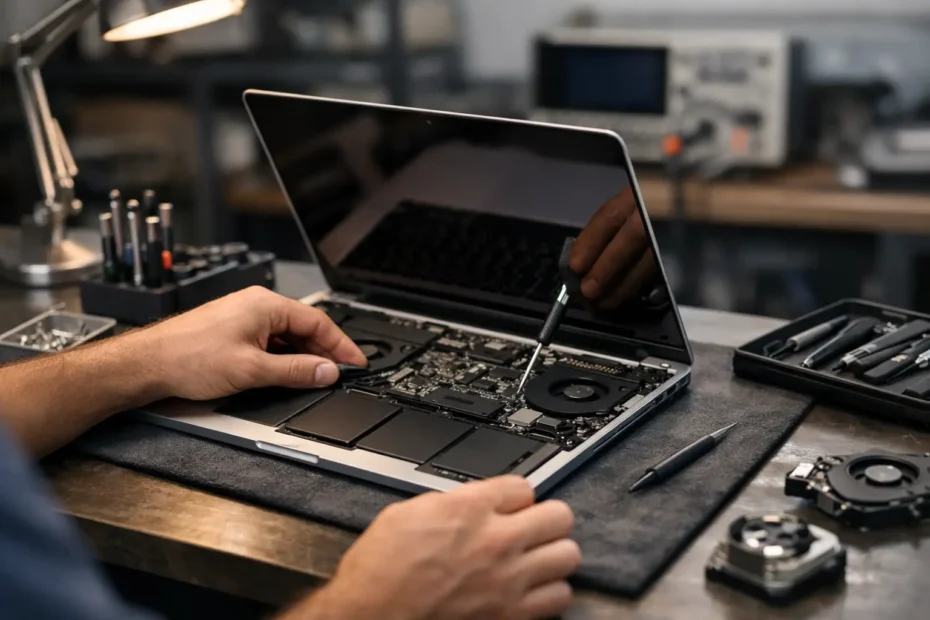
A MacBook Pro that will not turn on before a deadline, flickers during client work, or suddenly stops charging is not just an inconvenience. It can put files, income, and time-sensitive projects at risk. This MacBook Pro repair process guide explains what a proper repair should look like, from the first symptom through testing after the fix.
The most important point is simple: the visible symptom is not always the failed part. A black screen can be a display issue, a backlight circuit failure, liquid damage, a charging problem, or a logic board fault. Replacing parts before identifying the cause can waste money and, in some cases, make a repair harder.
Start the MacBook Pro Repair Process by Protecting Data
If the Mac still starts, back up your files before doing anything else. Use Time Machine, copy essential project folders to an external drive, or move critical files to an approved cloud storage account. Do this even when the issue seems minor, such as a worn battery or a sticky key. Repairs are careful work, but a failing drive, intermittent power issue, or existing corruption can become worse without warning.
If the Mac does not start, do not repeatedly force it on or continue charging it for hours. That is especially true after a spill. Liquid can create corrosion and short circuits long after the first incident, and applying power may increase the damage. Disconnect the charger, shut the computer down if possible, and bring it in for a prompt inspection.
Data recovery is often possible, but the path depends on the model and the failure. Some newer MacBook Pros use soldered storage that cannot simply be removed and read in another computer. In those cases, repairing the original logic board may be the best route to recovering the files.
Describe the Symptoms, Not Just the Suspected Part
A strong repair starts with useful information from the owner. You do not need technical vocabulary. Specific observations are more valuable than a guess that the Mac “needs a motherboard.”
Explain when the problem began, whether it followed a drop or spill, what appears on screen, whether the charging light or battery indicator changes, and whether the Mac makes sound or gets warm. Mention recent macOS updates, accessories connected at the time, previous repair attempts, and whether the machine works on an external monitor.
For example, “The screen went dark, but I can hear notifications and an external display works” points the diagnosis in a different direction than “It has no sound, no fan activity, and does not charge.” Details help a specialist test the right circuits and avoid unnecessary part replacement.
Diagnosis Should Come Before a Repair Quote
A proper diagnosis is more than plugging in a charger and declaring a Mac dead. On a MacBook Pro, a technician may inspect charging behavior, battery health, USB-C or MagSafe input, startup current draw, display output, keyboard and trackpad response, storage status, and liquid indicators. Advanced cases may require board-level testing with schematics, meter readings, and microscope work.
This is where repair shops differ substantially. Some shops operate on a module-replacement model: if a board-related problem is suspected, they quote a complete logic board. That can be appropriate when the board is severely damaged or when time and parts availability make replacement the practical choice. But it is not the only answer.
Component-level logic board repair can address a failed power rail, damaged charging circuit, corroded component, backlight fault, or other localized issue without replacing the whole board. It takes specialized equipment and experience, but it can save a Mac that a standard service channel considers uneconomical to repair.
A transparent diagnosis should identify the likely cause, explain the recommended repair, and separate confirmed problems from possibilities that require further testing. Ask whether the quote includes parts, labor, testing, and any warranty terms. You should know what you are approving before work begins.
Choosing Between Repair, Replacement, and an Upgrade
The right decision depends on the MacBook Pro’s age, condition, value, and role in your work. A battery replacement on a reliable Intel or Apple silicon Mac is usually straightforward value. A cracked display may also make sense when the rest of the computer is in good condition and the replacement cost is reasonable compared with a new machine.
Logic board repairs require more judgment. If a Mac contains irreplaceable data, repairing its original board may be worthwhile even when a replacement computer is planned afterward. If the board damage is limited and the machine otherwise meets your needs, a board-level repair can extend its useful life at a far lower cost than replacement.
There are trade-offs. An older Mac with a failing battery, damaged screen, and liquid-damaged board may need several repairs at once. At that point, an honest technician should discuss whether investing in the device makes sense. A repair-first approach does not mean pushing every Mac back into service. It means giving you a real choice based on facts rather than automatically recommending the most expensive option.
For compatible older models, an SSD upgrade, internal cleaning, thermal compound replacement, or supported macOS solution can also improve day-to-day usability. These services are particularly useful for Mac owners who need more time before a larger equipment purchase.
What Happens During the Repair
Once you approve the work, the repair should follow the issue rather than a one-size-fits-all routine. A battery service involves safe disassembly, removal of the old battery, installation of the replacement, and charging and health checks. A display repair includes testing the panel, camera, sensors, backlight, hinges, and cable routing.
Liquid damage treatment is more involved. The computer must be opened, contamination inspected, and affected areas cleaned and evaluated. Corrosion may be visible in some places and hidden beneath components in others. That is why a spill repair can sometimes uncover additional faults after initial cleaning and testing. Fast action improves the odds, but no honest shop can promise the result before examining the damage.
For no-power, no-backlight, and charging failures, the work may involve micro-soldering and replacement of individual board components. The goal is not to make the Mac appear to work for five minutes. It is to restore stable operation and identify whether other damaged circuits could affect reliability.
Turnaround varies. A battery, keyboard, screen, or software issue may be completed quickly when parts are available. Complex liquid damage and board-level repair can take longer because careful testing matters more than a rushed handoff. For Central Florida Mac owners, working directly with a specialist such as Eduardo at YourMac.Repair means you can discuss the actual findings instead of trying to interpret a generic status update.
Testing Is the Last Step, Not an Afterthought
Before pickup, a repaired MacBook Pro should be tested for the functions related to the original complaint and for systems affected during disassembly. Depending on the repair, that may include charging, battery recognition, startup, sleep and wake, keyboard, trackpad, Wi-Fi, ports, speakers, camera, display brightness, and external display output.
This is also the time to verify that your account signs in, key applications open, and important files are present. If the Mac was serviced for liquid damage or logic board trouble, ask what was repaired, what condition the device is in now, and whether there are any limitations to watch for.
Do not leave with unanswered questions. A good technician can explain the repair in plain English and tell you what practical care will help the Mac last longer. That might include using the correct charger, avoiding unstable adapters, keeping vents clear, or scheduling internal cleaning when the fan is constantly loud.
After You Get Your MacBook Pro Back
Create or refresh your backup immediately. Test the tasks that matter to you most – your editing software, business applications, external drives, printer, video calls, or school tools. If anything seems unusual, report it promptly with a clear description of what happened and when.
A repaired MacBook Pro should give you confidence, not another mystery to manage. The right repair process respects your data, explains the real fault, and treats your computer as a tool worth fixing when the numbers make sense. That is the standard to expect when your work is on the line.
Need Mac or iPhone repair in Winter Garden / Orlando?
YourMac.Repair — board-level Apple repair with honest diagnosis and fast turnaround. We say YES when Apple says NO.
- Mac Logic Board Repair — liquid damage specialist
- Mac Screen Repair
- Mac Battery Replacement
- Mac & PC Data Recovery
- iPhone Screen Repair — same-day service
📞 (407) 580-9965 · WhatsApp · 819 Marsh Reed Dr, Winter Garden, FL 34787