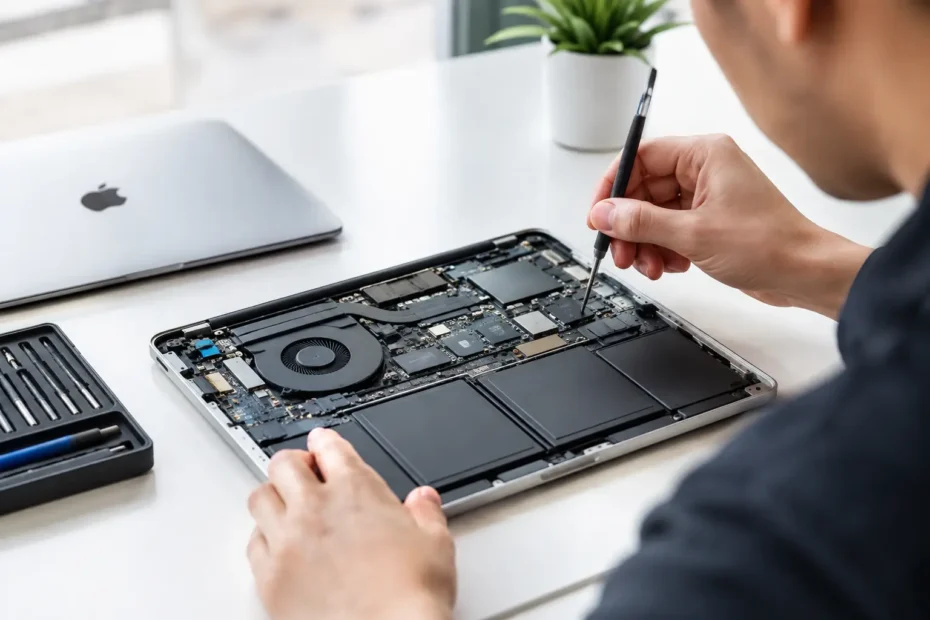
A Mac that suddenly will not start before a deadline is more than an inconvenience. It can put client files, schoolwork, photos, and years of data at risk. The best signs of Mac motherboard failure are often mistaken for a bad battery, a macOS problem, or a worn-out charger. Sometimes those simpler causes are correct. Other times, the real issue is the logic board, the main circuit board that controls power, charging, storage access, display functions, and communication between internal components.
Knowing the difference matters because a logic board problem does not automatically mean your Mac is beyond repair. Accurate diagnosis comes first. A technician should confirm the failure, identify the affected circuit or component, and explain whether a component-level repair makes practical sense.
Best Signs of Mac Motherboard Failure
Your Mac shows no response to power
The clearest warning sign is a Mac that appears completely dead. You press the power button and get no startup sound, no fan movement, no trackpad click on models that normally provide one, no screen image, and no charging indication.
Before assuming a board failure, test with a known-good compatible charger and cable. USB-C cables and power adapters can fail, and a damaged charging port can mimic a larger issue. If another charger makes no difference, especially after a power surge, drop, or spill, the logic board needs closer attention.
A no-power Mac can have a shorted power rail, failed charging circuit, damaged power-management chip, corrosion, or another board-level fault. Replacing the entire logic board is one option, but it is not the only option. In many cases, the damaged component or circuit can be repaired without replacing the whole assembly.
It powers on, then immediately shuts down
A Mac that starts for a few seconds and turns off can be frustrating because it looks almost functional. You may see the Apple logo, hear the fan briefly spin, or reach the login screen before it dies. Repeated shutdowns can point to a logic board issue, particularly when they happen with different chargers, after reinstalling macOS, or even in Recovery Mode.
That said, this symptom can also come from a failing battery, thermal problem, damaged display assembly, or peripheral device. Disconnect all external accessories first. If the Mac still shuts down with nothing attached, a proper diagnosis should check power consumption, startup rails, battery communication, and temperature sensor readings instead of guessing.
The battery will not charge or is not recognized
Charging trouble is not always a battery problem. If your Mac says “Not Charging,” does not recognize the battery, only runs on the charger, or rapidly connects and disconnects from power, the charging circuitry on the logic board may be involved.
This is especially common on MacBooks with liquid exposure or physical damage around USB-C ports. A board-level issue may affect one port while another still works, or it may prevent every port from charging. Replacing the battery without testing the charging system can waste money and leave the original failure unresolved.
The screen stays black, but the Mac is running
A black display does not automatically mean a bad screen. If you hear startup sounds, fan activity, keyboard backlight behavior, or notifications, your Mac may be booting normally while failing to send a usable image to the internal display.
On some models, the issue is the display panel or display cable. On others, it is a failed backlight circuit, graphics-related board fault, or connector damage on the logic board. Shine a flashlight at the screen in a dark room. A very faint image can suggest a backlight problem, while a working external display can help narrow down whether the Mac itself is starting.
Do not force the conclusion based on one test. External display behavior varies by model, macOS version, and the type of fault. A technician with the right tools can determine whether the failure is in the screen assembly or on the board.
Ports, Wi-Fi, audio, or keyboard functions fail together
One malfunctioning USB port may be caused by wear or debris. Several unrelated functions failing at the same time is more concerning. For example, your Mac may lose Wi-Fi and Bluetooth, stop detecting USB devices, have no audio output, or show intermittent keyboard and trackpad behavior.
When multiple systems share a common controller, power line, or communication path, a logic board fault becomes more likely. These problems can appear after liquid damage, a failed accessory, overheating, or corrosion that develops gradually after a spill.
An important clue is whether the issue persists after a clean macOS installation or when booted from Recovery Mode. If it does, software is less likely to be the cause. Still, software should not be dismissed blindly. Profiles, security software, damaged system files, and unsupported modifications can create confusing symptoms that deserve a careful check.
The Mac overheats, freezes, or restarts without a clear pattern
Unexpected restarts, kernel panics, freezing during light tasks, and fans running at full speed can all be signs of hardware trouble. A logic board fault may cause unstable voltage, missing sensor data, memory communication errors, or failures that only appear once the system warms up.
The trade-off here is that overheating is also commonly caused by dust buildup, dried thermal compound, an aging fan, or demanding software. An internal cleaning and thermal service can be the right repair when the board is healthy. The goal is not to label every hot Mac as a motherboard failure. It is to find out why it is hot and unstable before replacing parts.
Problems began after a liquid spill, even if the Mac worked at first
Liquid damage is one of the strongest warning signs because corrosion does not always cause an immediate failure. A MacBook can seem fine after a spill, then lose charging, backlight, keyboard functions, or power days or weeks later. Even small amounts of liquid can migrate beneath shields and connectors, where corrosion continues out of sight.
Do not keep charging or repeatedly trying to start a wet or recently spilled-on Mac. That can turn a repairable circuit fault into broader damage. The right response is to disconnect power, avoid rice or heat, and have the Mac inspected as soon as possible. Fast treatment improves the chances of protecting both the device and its data.
What a Real Logic Board Diagnosis Should Include
A trustworthy diagnosis is more than plugging in a charger and declaring the board bad. It should begin with the device history: Did it get wet? Fall? Stop working after an update? Was a third-party charger or dock connected? Those details help direct testing, but they should not replace it.
The technician should inspect for corrosion and physical damage, test power input and charging behavior, evaluate startup activity, and isolate whether the fault belongs to the battery, screen, storage, ports, or logic board. On advanced repairs, this may include measuring voltage rails and tracing short circuits at the component level.
For newer Macs with soldered storage, board repair can be especially valuable because the data may be tied directly to that original logic board. Replacing the board can mean losing access to files if no backup exists. It depends on the model and the nature of the damage, but data recovery should be part of the conversation before any major replacement is approved.
What to Do When You Suspect a Board Failure
Start with the safe basics. Try a known-good Apple-compatible charger, disconnect every accessory, and avoid repeatedly forcing restarts. If the Mac still boots, back up important files immediately. A failure that is intermittent today can become a no-power condition tomorrow.
Avoid random part swapping. Batteries, screens, charging ports, and logic boards are expensive, and symptoms overlap. A repair-first specialist can tell you whether the issue is a simple peripheral part, a software conflict, or a component-level board repair worth doing.
For Mac owners in Central Florida, YourMac.Repair provides direct diagnosis with Eduardo, an Apple specialist with more than 30 years of experience. You get a clear explanation of what failed, what can be repaired, and whether the cost makes sense before moving forward.
A Mac that will not power on or charge is not necessarily ready for replacement. The most useful next step is preserving your data, stopping further damage, and getting an honest diagnosis while the repair options are still open.
Need Mac or iPhone repair in Winter Garden / Orlando?
YourMac.Repair — board-level Apple repair with honest diagnosis and fast turnaround. We say YES when Apple says NO.
- Mac Logic Board Repair — liquid damage specialist
- Mac Screen Repair
- Mac Battery Replacement
- Mac & PC Data Recovery
- iPhone Screen Repair — same-day service
📞 (407) 580-9965 · WhatsApp · 819 Marsh Reed Dr, Winter Garden, FL 34787