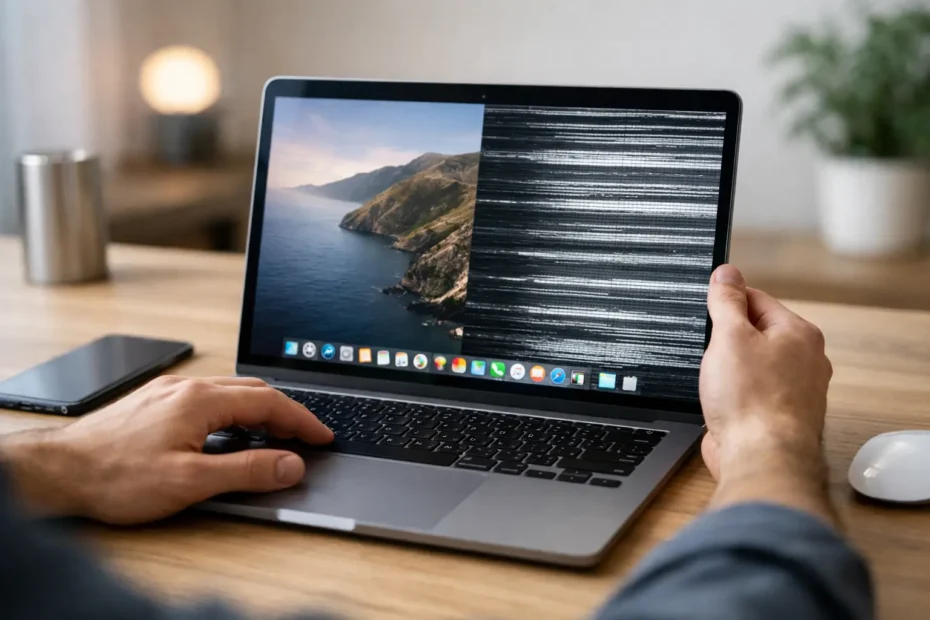
A MacBook screen that flashes, dims, jumps, shows lines, or briefly goes black can stop work cold. If you are searching for how to fix flickering MacBook screen problems, start by identifying when the flicker happens. A display issue that appears only after waking from sleep is very different from one that changes when you move the lid or appears before macOS loads.
The good news is that not every flickering display needs a screen replacement. Some cases come down to a macOS setting, a bad app, or an outdated system. Others point to a failing display cable, a damaged LCD panel, liquid exposure, or a logic board issue that needs real diagnostics. The pattern matters.
First, Protect Your Data and Observe the Pattern
Before testing anything, back up the Mac if it will stay on long enough. Flickering alone does not always mean the computer is about to fail, but a display problem can be the first visible symptom of a larger power or logic board issue. A current backup protects your files while you work through the cause.
Then pay attention to what the screen is doing. Does it flicker only at low brightness? Does the image distort when you open or close the lid? Is the screen normal on an external monitor? Does it happen in one app, during video playback, or everywhere, including the login screen?
Those details narrow the diagnosis quickly. Flickering that begins after a recent macOS update is often software-related. Flickering that changes with the lid angle is more likely related to the display cable, connector, or panel. Random blackouts, colored lines, or a screen that remains dark while the Mac is clearly running can point to hardware beyond the display itself.
How to Fix a Flickering MacBook Screen With Basic Checks
Start with the simple checks that do not risk your Mac or your data. Restart the computer fully, not just by closing the lid. A restart clears temporary display processes and can resolve a one-time wake or graphics glitch.
Next, disconnect everything connected to the MacBook. Remove external displays, USB-C hubs, docks, chargers, storage drives, and adapters. A failing hub, poor-quality USB-C cable, or unstable power delivery can cause display flickering, especially on newer MacBook Pro and MacBook Air models that share ports for charging and video output.
If the problem disappears after disconnecting an accessory, reconnect devices one at a time. This is slower than guessing, but it identifies whether the issue is the MacBook, a cable, a power adapter, or a dock.
Check the display settings as well. Open System Settings, then Displays, and look at the refresh rate if your model provides that option. A mismatched or unstable refresh rate can cause visible flashing on some external displays. For the built-in screen, turn off automatic brightness temporarily and test with True Tone disabled. These features are usually helpful, but sensor or software behavior can occasionally look like flickering.
If the issue happens only while watching video, quit the browser or app and test another one. Browser extensions, hardware acceleration, and a single outdated app can create flashing that looks like a screen failure. If only one application triggers the issue, the panel is probably not the problem.
Rule Out macOS and Account-Level Problems
Install available macOS updates once you have a backup. Apple regularly includes graphics, display, and power-management fixes in system updates. The reverse can also be true: if the flicker started immediately after an update, the problem may be an application compatibility issue or a bug that needs a later update.
Safe Mode is one of the most useful tests because it starts macOS with only essential software. On Apple silicon Macs, shut down the Mac, hold the power button until startup options appear, select your startup disk, hold Shift, and choose the Safe Mode option. On Intel Macs, restart and hold Shift as the Mac starts.
Use the Mac briefly in Safe Mode. If the flickering stops, a login item, third-party utility, browser extension, or software conflict is more likely than a failed display. Review Login Items in System Settings, remove recently installed utilities, and test again under normal startup.
A second user account can provide another useful clue. If the screen flickers only in your usual account but not in a newly created test account, focus on account-specific settings, apps, and login items. If it flickers in every account and in Safe Mode, hardware becomes more likely.
For Intel-based MacBooks, resetting NVRAM can sometimes correct stored display-related settings. Shut down the Mac, start it, and immediately hold Option, Command, P, and R for about 20 seconds. Do not rely on old reset instructions for Apple silicon models, though. Their startup and system-management behavior is different, and a proper shutdown and restart handles many of the same basic functions.
Use an External Display as a Diagnostic Tool
Connecting an external monitor can tell you a great deal without opening the MacBook. If the external screen is stable while the built-in display flickers, the issue is often in the MacBook display assembly, display cable, hinge-area connection, or backlight circuitry.
If both the built-in screen and the external display flicker, show artifacts, or lose signal, the problem may involve macOS, graphics processing, power delivery, or the logic board. That does not automatically mean the Mac is beyond repair. It means the diagnosis should go beyond replacing the screen.
There are exceptions. A bad adapter can make an external display flicker independently, and certain graphics-heavy workloads can expose a software issue. Still, comparing the internal and external displays is one of the fastest ways to separate a panel-related issue from a broader system problem.
Signs the Problem Is Hardware, Not a Setting
Some symptoms deserve professional attention early because repeated testing will not repair the underlying fault. Avoid pressing on the screen, twisting the lid, or repeatedly forcing the Mac to wake. Modern Retina displays are thin and easy to damage further.
A flicker that changes when the lid moves is a classic warning sign. Depending on the model, the display flex cable can wear, crack, or develop an intermittent connection near the hinge. In other cases, the display connector needs inspection, particularly after a drop or prior repair.
Vertical lines, bright flashes, dark spots, image retention, or a display that flickers only on one side can indicate panel damage. A backlight problem may leave a faint image visible under a flashlight while the screen otherwise appears black. Liquid damage can create intermittent flickering days or weeks after a spill, even if the Mac initially seemed fine.
When the MacBook has no display on the internal screen and also behaves unpredictably on an external monitor, board-level diagnosis is especially valuable. Power rails, display circuits, backlight components, and corrosion can all produce similar symptoms. Replacing a complete display assembly without confirming the cause can be an expensive guess.
When to Stop Troubleshooting and Get a Diagnosis
If the screen continues to flicker after a restart, software updates, Safe Mode testing, and accessory removal, it is time for a hands-on inspection. Bring notes about when the issue began, whether the Mac was dropped or exposed to liquid, and whether an external monitor works normally. That information saves time and helps avoid unnecessary parts replacement.
For Mac owners in Central Florida, YourMac.Repair provides direct diagnosis with Eduardo, an Apple repair specialist with more than 30 years of experience. That matters when a flickering screen may be a cable, panel, backlight circuit, or logic board issue rather than a simple display replacement. A transparent diagnosis should explain the actual fault, the repair options, and whether the repair makes financial sense for your model.
A flickering MacBook screen is frustrating, but it is also a useful signal. Pay attention to the pattern, protect your data, test the software basics, and do not let a vague “screen problem” push you into replacing a Mac that may still have a practical, repairable path forward.
Need Mac or iPhone repair in Winter Garden / Orlando?
YourMac.Repair — board-level Apple repair with honest diagnosis and fast turnaround. We say YES when Apple says NO.
- Mac Logic Board Repair — liquid damage specialist
- Mac Screen Repair
- Mac Battery Replacement
- Mac & PC Data Recovery
- iPhone Screen Repair — same-day service
📞 (407) 580-9965 · WhatsApp · 819 Marsh Reed Dr, Winter Garden, FL 34787