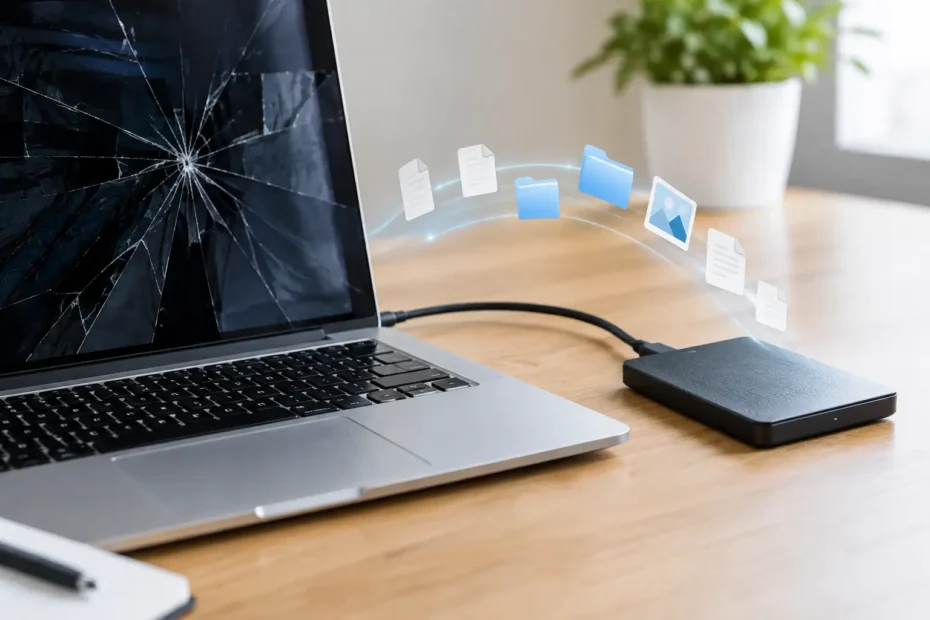
A Mac can fail in the middle of a workday without warning: no power, a black screen, a folder with a question mark, or liquid damage after a small spill. The good news is that a failed Mac does not automatically mean failed data. The right way to migrate files from broken Mac hardware depends on what is actually broken, where the storage lives, and whether the drive is encrypted.
The biggest mistake is treating every nonworking Mac the same. A computer with a dead display may still be fully operational. A Mac with a damaged charging circuit may need only enough board-level repair to boot and transfer data. But a newer MacBook with soldered storage, FileVault encryption, and liquid damage calls for a much more careful approach. Before you erase, reinstall, or repeatedly try to power it on, identify the failure type.
First, Protect the Data You Still Have
If the Mac was exposed to liquid, stop charging it and do not keep attempting to start it. Power running through wet or corroding components can turn a repairable issue into more extensive logic board damage. Do not use rice, heat guns, or compressed air. Those methods do not remove contamination from under components, and heat can make matters worse.
For a Mac that will not start but was not exposed to liquid, disconnect all unnecessary accessories and try one known-good charger and cable. Avoid cycling through dozens of power attempts. If it boots even once, use that time to make a backup rather than troubleshoot software. Connect an external drive, copy the most irreplaceable folders first, and then make a complete Time Machine backup if the Mac stays stable.
Start with documents, desktop files, photos, client projects, accounting records, and anything not already synced to cloud storage. Do not assume iCloud Drive, Dropbox, Google Drive, or OneDrive contains every local file. Sync can pause, folders may be excluded, and recent changes may not have uploaded before the failure.
Can You Migrate Files From a Broken Mac Yourself?
Sometimes, yes. The safest do-it-yourself method is one that does not require opening the computer or altering its internal drive. If the Mac turns on and you can sign in, Migration Assistant can move user accounts, applications, settings, and files to a replacement Mac. A Time Machine backup can accomplish much of the same job.
If the display is broken but the Mac otherwise starts, an external monitor may provide access. Connect it directly with the correct adapter, attach a keyboard and mouse if needed, then sign in and back up the files. This is often the simplest answer for an iMac with a failed screen or a MacBook with backlight damage.
Target Disk Mode can also help on many Intel-based Macs. It makes the failed Mac appear as an external drive when connected to another compatible Mac. On Apple silicon Macs, the equivalent option is Share Disk, available through macOS Recovery. Both methods can work well, but only if the Mac can power on far enough to access the storage and you know the login password or recovery key for an encrypted disk.
The trade-off is straightforward: if the Mac is unstable, has active liquid damage, or shuts down during startup, continued home testing can raise the risk. A professional diagnosis may be the faster and safer choice, especially when the files are business-critical.
Use Migration Assistant When the Old Mac Is Accessible
Migration Assistant is designed for a working or partially working source Mac. It is the right choice when the original machine can boot normally, boot with an external display, or present its storage through Target Disk Mode or Share Disk.
On the new Mac, open Migration Assistant and choose to transfer from another Mac, Time Machine backup, or startup disk. On the old Mac, open Migration Assistant and choose to transfer to another Mac. Follow the on-screen pairing steps and select the user account, applications, and data you want moved.
A wired connection is usually better than Wi-Fi for a large transfer. It is faster and less likely to fail halfway through. Keep both Macs connected to power, and do not let either computer sleep during the migration.
If you only need files, copying your home folder manually can be cleaner than transferring everything. Applications from an older Mac may not be compatible with a newer macOS version, particularly when moving from Intel hardware to Apple silicon. Your documents, photos, mail archives, and project folders are usually the priority.
Recover From a Time Machine Backup
A current Time Machine backup is the easiest recovery path. Connect the backup drive to the replacement Mac, open Migration Assistant, and select the Time Machine option. You can restore the entire user account or choose specific categories.
Before trusting the migration, inspect the backup date. A backup from six months ago may restore your Mac environment but miss recent work. If the broken Mac can still start, it may be worth creating one fresh backup before moving to the replacement computer.
Why Newer Macs Require More Care
Many older MacBook Pro, MacBook Air, iMac, and Mac mini models have removable SSDs or hard drives. In those cases, a technician may be able to remove the storage device, place it in an appropriate enclosure, and copy files to another Mac. That option depends on the exact model and drive type.
Newer Macs are different. On many Apple silicon models and several later Intel MacBooks, the internal storage is soldered to the logic board. It cannot simply be removed and connected by USB. The storage is also commonly protected by hardware-based encryption and FileVault. Even when the data chips are physically intact, the information may be unreadable without the original logic board functioning enough to unlock it.
That is why board-level repair matters for data recovery. The goal is not always to make the Mac look perfect or return it to daily use. In some cases, the practical goal is to repair the charging, power, backlight, USB-C, or storage-related circuit long enough to access the encrypted data and migrate it safely.
A shop that immediately declares soldered-storage Macs “unrecoverable” may be describing its own repair limits, not every available option. At the same time, no honest technician should promise recovery before diagnosing the condition of the board and storage system.
Avoid These Common Data Recovery Mistakes
Do not erase the Mac because it will not boot. macOS Recovery may suggest reinstalling the operating system, and that can be useful for a software-only problem, but it is not the first move when your files are the priority. Reinstalling without erasing is often non-destructive, yet a failing drive or unstable system can complicate the process.
Do not run disk-repair tools repeatedly on a drive that is clicking, disappearing, or freezing the computer. Disk Utility First Aid is appropriate for minor directory problems, but it cannot repair physical media failure. Repeated reads from a failing hard drive can make recovery harder.
Do not assume a password reset is harmless. If FileVault is enabled, the login password and recovery key are central to accessing the data. Changing credentials without understanding the encryption setup can create confusion at the worst possible time. Gather any Apple ID details, FileVault recovery key, and known user passwords before seeking help.
Finally, do not use random recovery software on the only copy of your data. Software recovery has a place when a drive is stable and accessible, but it cannot overcome a dead logic board, failed encryption access, or severe physical drive damage. It may also write to the source disk if used incorrectly.
When a Professional Recovery Assessment Makes Sense
Bring the Mac in for diagnosis when it has liquid damage, will not power on, shows no image even with an external display, repeatedly restarts, is not recognized by another Mac, or contains soldered storage. This is particularly true if the Mac holds business files, active creative projects, tax records, or years of photos.
A proper assessment should separate the computer repair question from the data question. Can the Mac be repaired for normal use? Can it be stabilized long enough to copy data? Is the storage physically failing? Is encryption preventing access? Clear answers help you decide whether repair, recovery, or replacement makes financial sense.
At YourMac.Repair, customers work directly with Eduardo, a specialist with more than 30 years of Apple experience. That direct conversation matters when the priority is not simply getting a device to boot, but protecting the files that make the device valuable in the first place.
If your Mac still shows any sign of life, treat that as an opportunity, not a reason to wait. Preserve power, avoid risky experiments, and make the safest copy of your important files possible before a small failure becomes a permanent data-loss problem.
Need Mac or iPhone repair in Winter Garden / Orlando?
YourMac.Repair — board-level Apple repair with honest diagnosis and fast turnaround. We say YES when Apple says NO.
- Mac Logic Board Repair — liquid damage specialist
- Mac Screen Repair
- Mac Battery Replacement
- Mac & PC Data Recovery
- iPhone Screen Repair — same-day service
📞 (407) 580-9965 · WhatsApp · 819 Marsh Reed Dr, Winter Garden, FL 34787