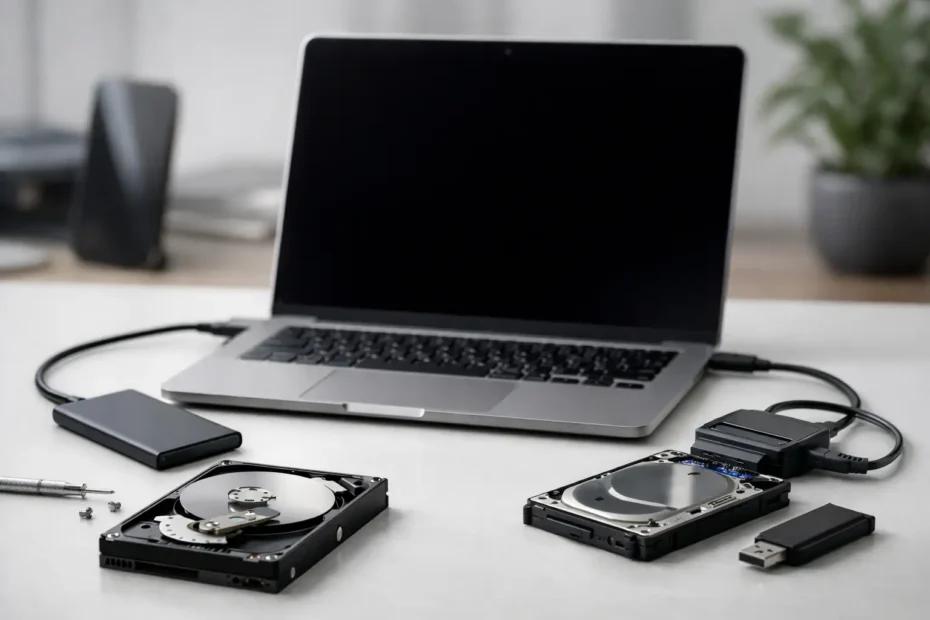
A Mac that will not turn on tends to create two immediate fears at once: the computer may be finished, and your files may be gone with it. The good news is that those are not the same problem. If you need to know how to recover files from dead Mac hardware, the first step is figuring out whether the failure is with power, the screen, the logic board, or the storage itself.
That distinction matters because many “dead” Macs are not truly dead. Some have a bad display, some have liquid damage on the board, and some simply will not boot macOS even though the SSD is still readable. If you move too quickly, especially with a damaged machine, you can turn a recoverable case into a much harder one.
Before you try to recover files from a dead Mac
Start with the obvious question: what exactly is the Mac doing? If it shows no signs of life at all, your options are different from a Mac that chimes, charges, or powers on to a black screen. Listen for fan spin, keyboard backlight, startup sounds on older models, or trackpad click behavior on some MacBooks. Those clues help separate a display issue from a storage issue.
If there was liquid exposure, a drop, overheating, or repeated restart behavior before failure, be careful. Continuing to power on a liquid-damaged Mac can worsen corrosion and short additional components. In that situation, preserving the drive and avoiding more damage should be the priority.
You should also avoid random “fixes” from forums if the data matters. Resetting, reinstalling macOS, erasing the disk, or experimenting with Terminal commands can be fine on a machine you do not care about. They are not good first moves when the real goal is file recovery.
The safest DIY paths depend on the Mac model
How to recover files from dead Mac devices depends a lot on whether the storage is removable, soldered, encrypted, or tied to a security chip. Older Intel Macs often give you more flexibility. Newer Macs, especially those with T2 security or Apple silicon, can be far less forgiving.
If the Mac still powers on to Recovery or Target mode
This is the best-case scenario. If the Mac can enter macOS Recovery, Disk Utility may show whether the internal drive is visible. From there, you may be able to copy files to an external drive using Recovery tools or mount the disk and transfer data another way.
On some Intel Macs, Target Disk Mode can let the dead Mac act like an external drive when connected to another Mac. If the drive mounts and FileVault credentials are available, recovery can be straightforward. This works well when the problem is with the operating system or some non-storage hardware, not when the SSD itself is failing.
Newer Macs with Apple silicon use a different sharing process rather than classic Target Disk Mode. It can still be possible, but setup is more limited and success depends on the specific failure.
If the display is dead but the Mac is actually running
This is more common than people think. A failed backlight circuit, damaged display cable, or broken panel can make a Mac look dead when it is not. Try an external monitor if the model supports it. If the computer outputs video externally, your files may be fully intact and easy to copy.
This is also why board-level diagnosis matters. A no-image condition and a no-power condition are not the same thing, even though they can look identical to the owner.
If you can remove the drive
On older MacBook, MacBook Pro, iMac, and Mac Mini models, the SSD or hard drive may be removable. If you know the model and have the right tools, the drive can sometimes be taken out and connected to another Mac with a compatible enclosure or adapter.
That said, this is where people make expensive mistakes. Apple used several proprietary SSD formats over the years, and some drives are encrypted in ways that require the original machine or the correct password. Physical removal is only useful if the storage is healthy and accessible.
When DIY recovery usually does not work
There is a point where home recovery becomes guesswork. If your Mac has liquid damage, board corrosion, burn marks, severe impact damage, or a completely dead logic board, the issue may not be the SSD at all. The drive can be fine, but inaccessible because the board cannot initialize it.
On many newer MacBooks, the SSD is soldered to the logic board. That means you cannot simply remove it and plug it into an adapter. With T2-equipped Macs and Apple silicon models, data access may also depend on board-level communication, encryption, and working internal components. In plain terms, the storage may contain your files, but it still takes a functioning path to read them.
This is where a real diagnostic matters more than generic data recovery claims. Some shops only replace parts by module. If the machine does not power on, they call the board bad and recommend replacement. That may restore the computer, but it does not always address the fastest or most cost-effective path to your data. In other cases, Apple may decline repair entirely if there is liquid damage or board failure.
Signs you should stop and get professional help
If the Mac gets hot immediately, smells burned, was exposed to liquid, or has important business files that are not backed up, stop experimenting. The same applies if Disk Utility does not see the drive, the Mac repeatedly kernel panics, or you hear unusual clicking from an older hard drive.
Repeated boot attempts can stress a failing drive. Charging a liquid-damaged board can create more electrical damage. And opening newer Retina or Apple silicon Macs without the right process can damage the battery, display, or board connectors.
A specialist can separate three very different goals: making the Mac work again, making the storage readable long enough to copy data, or moving straight to data extraction. Those are not always the same repair path.
What professional Mac data recovery often looks like
A proper recovery process starts with diagnosis, not assumptions. The key question is whether the problem is power, board communication, storage failure, or encryption access. Once that is clear, the technician can decide whether to stabilize the existing board, repair a critical circuit, create a temporary boot condition, or access the drive another way.
In board-level cases, sometimes the smartest move is not a full repair. It may only take restoring a damaged power rail, backlight circuit, SSD communication line, or corroded component long enough to pull the data. That can be faster and less expensive than replacing major assemblies, especially when the owner mostly wants files back.
This is also why direct communication with the technician matters. You want someone who can tell you whether the machine is a realistic recovery candidate, what the risks are, and whether the cost makes sense before going too far. At YourMac.Repair, for example, customers talk directly with Eduardo rather than getting filtered through a generic front desk, which is especially valuable in no-power and liquid-damage data cases.
Common mistakes that make recovery harder
The biggest mistake is treating every dead Mac the same. A Mac with a failed battery is one type of problem. A Mac with a shorted logic board and soldered SSD is another. The wrong next step can waste time or damage the only recovery path.
Another common mistake is reinstalling macOS before checking whether the drive is failing. If the system is unstable because the SSD is degrading, a reinstall can increase write activity and make things worse. The same goes for running repeated scans or repair utilities without knowing the health of the storage.
People also underestimate FileVault. If encryption is enabled and you do not have the login password or recovery key, even a physically healthy drive may not yield usable files. Recovery is not just about reading data off chips. It is about producing readable, decrypted files.
The fastest way to protect your chances
If the data matters, power the Mac off, do not keep charging it, and do not attempt repeated startups. Write down the model, what happened right before failure, and whether you use FileVault. If there was liquid involved, mention when it happened and whether the machine was turned on afterward.
That information can save hours in diagnosis. It also helps a technician decide whether the best path is board repair, donor-part testing, external access, or direct recovery work.
The most reassuring part of this process is simple: a dead Mac does not automatically mean dead data. Sometimes recovery is straightforward. Sometimes it takes component-level repair and patience. Either way, the best results usually come from making fewer guesses and protecting the machine before the problem gets worse.
Need Mac or iPhone repair in Winter Garden / Orlando?
YourMac.Repair — board-level Apple repair with honest diagnosis and fast turnaround. We say YES when Apple says NO.
- Mac Logic Board Repair — liquid damage specialist
- Mac Screen Repair
- Mac Battery Replacement
- Mac & PC Data Recovery
- iPhone Screen Repair — same-day service
📞 (407) 580-9965 · WhatsApp · 819 Marsh Reed Dr, Winter Garden, FL 34787