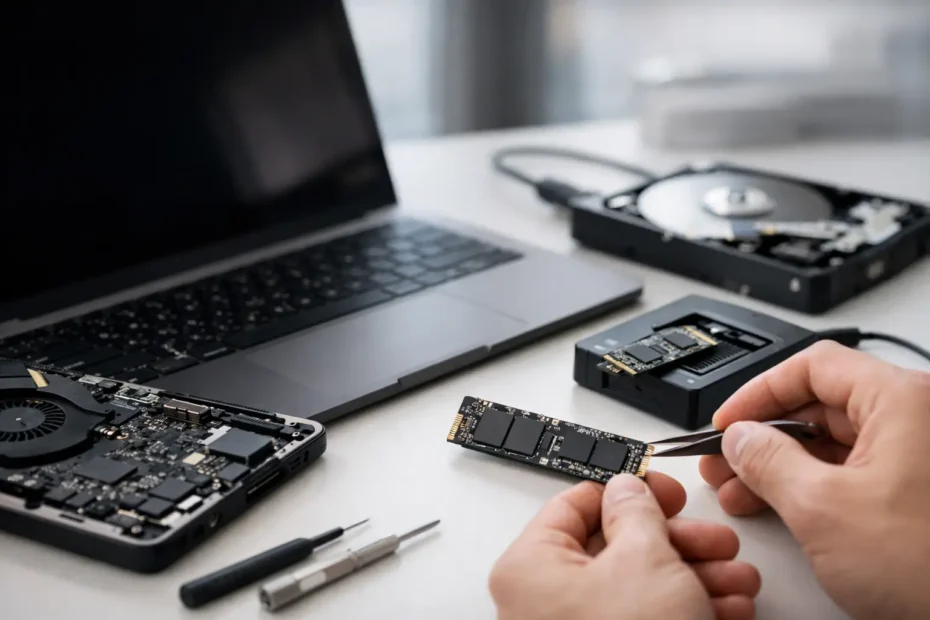
A Mac that suddenly will not boot can make every file feel lost at once: client work, family photos, accounting records, music projects, and years of email. But a dead Mac does not automatically mean a dead SSD. Data recovery from failed Mac SSD storage depends less on panic-driven software attempts and more on identifying what actually failed before anything overwrites, encrypts, or damages the remaining data.
The first priority is simple: stop using the Mac. Do not keep restarting it, reinstall macOS, erase the disk, or assume a new SSD will bring the old files back. Those actions can turn a recoverable situation into a much harder one.
Why a Failed Mac SSD Is Different
Mac SSD recovery is not always like recovering a removable hard drive from an older PC. On many recent MacBook, iMac, Mac mini, and Mac Studio models, the storage is integrated with the logic board. In many Apple silicon Macs, the internal storage cannot simply be removed and connected to another computer.
There is another major factor: encryption. Modern Macs commonly use FileVault, T2 security chips, or Apple silicon hardware encryption. Your files may be fully intact on the storage chips, yet inaccessible if the Mac cannot complete the startup process, communicate with its security hardware, or validate the encryption keys.
That is why a generic “SSD recovery” approach can be misleading. The goal is often not to pull a drive and scan it. It may be to repair the Mac enough to boot, unlock its encrypted storage, and safely copy the data to another drive.
First, Determine What Actually Failed
A Mac that shows a folder with a question mark, a prohibitory symbol, a blank screen, or no signs of life may have a storage issue. It may also have a very different problem.
A failed macOS installation can look like an SSD failure. So can a bad USB-C port, a damaged charging circuit, a failed display backlight, liquid damage, a corrupted power rail, or a logic board fault. If the Mac powers on but will not load macOS, the internal SSD may still be healthy. If it has no power at all, the data may still be present but unreachable until the board is repaired.
Accurate diagnosis matters because the recovery path changes with the fault. A Mac with a corrupted operating system may allow data recovery through Recovery Mode, Target Disk Mode on compatible Intel models, or an external boot environment. A Mac with liquid damage or a board-level power issue may need component-level repair before its storage can be accessed.
What Not to Do When Your Mac SSD Fails
When the data matters, avoid experiments that write to the internal drive or repeatedly stress failing hardware. Four common mistakes cause unnecessary risk:
- Reinstalling macOS before copying important files
- Erasing or reformatting the internal disk in Disk Utility
- Running repeated repair attempts after the Mac begins freezing or disconnecting
- Opening a modern MacBook and trying to remove soldered storage chips
Disk Utility First Aid has a place when the issue is minor file-system corruption and a current backup exists. It is not the right first move when the Mac contains irreplaceable files, the drive is disappearing, or the system is showing signs of physical failure. File-system repairs can modify structures on the disk. When storage is unstable, every write operation deserves caution.
If the Mac suffered a spill, do not charge it just to see whether it starts. Liquid damage can create corrosion and short circuits that worsen each time power is applied. Disconnecting power and getting a proper inspection quickly gives the best chance of protecting both the board and the data.
Data Recovery From Failed Mac SSD Storage: The Real Options
The best recovery method depends on the Mac model, the symptoms, the encryption status, and the condition of the logic board.
Copy the Data if the Mac Still Boots
If the Mac starts normally, acts stable, and the SSD appears in Finder, copy the most important files immediately to an external drive. Start with current work folders, photos, documents, desktop files, email archives, and any application-specific libraries. Do not spend hours organizing files first. Get a second copy made while the Mac is still functioning.
A full backup is ideal, but a prioritized copy is better than losing time while the drive deteriorates. If the Mac becomes slow, beachballs constantly, or disconnects its internal disk, stop and have it evaluated rather than forcing a large transfer through repeated crashes.
Use macOS Recovery Carefully
When a Mac will not boot normally but Recovery Mode can see the internal volume, there may be a path to copy files without reinstalling the operating system. Depending on the model and macOS version, a technician may be able to mount the encrypted volume after entering the correct password, transfer files to an external drive, or use a supported sharing mode.
This is where details matter. An Intel Mac may support Target Disk Mode. Apple silicon Macs use a different process, and data access is still tied to the Mac’s security architecture. The right procedure is model-specific, not a one-size-fits-all command sequence found online.
Repair the Logic Board to Access the Data
For Macs with soldered storage, logic board repair can be the most practical form of data recovery. The storage chips may be fine, but the Mac may have a failed power circuit, damaged charging controller, corroded component, or a fault preventing the board from initializing.
In those cases, replacing the logic board can make the Mac work again but usually does not recover the files stored on the original board. Repairing the original board, even temporarily, may be what allows the Mac to decrypt and copy the data. This is especially relevant for Apple silicon models, where storage and security are tightly integrated.
A repair-first approach is not always possible. Severe corrosion, fire damage, destroyed storage chips, or extensive board damage can limit the outcome. Still, a proper board-level diagnosis is far more useful than assuming that no-power means no-data.
Recover Data From Older Removable SSD Macs
Some older Mac models have removable SSDs. If the SSD itself is healthy but the Mac has another hardware failure, it may be possible to remove the drive and access it with the correct adapter or enclosure. Even then, FileVault can require the original user password or recovery key.
If the removable SSD has failed electronically, specialized recovery may involve controller-level work and chip-level techniques. Results depend on the failure type, drive design, encryption, and whether the data has been overwritten. This is not a situation for consumer recovery software if the SSD is no longer detected reliably.
Why Encryption Changes the Recovery Conversation
Encryption protects your data when a Mac is lost or stolen. It also means that raw access to storage chips is not necessarily useful. On newer Macs, the encryption keys and secure hardware relationship are central to data access.
Keep your Mac login password, FileVault recovery key, and Apple Account information available when seeking help. A legitimate repair specialist should never ask you to share credentials casually, but recovery may require you to enter the password yourself to unlock the volume. Without the correct credentials, even technically intact data may remain inaccessible by design.
When to Call a Specialist
A specialist is worth contacting when the Mac has no power, was exposed to liquid, is stuck during startup, cannot see its internal disk, reports a SMART or storage error, or contains files that cannot be replaced. The same applies when Apple or another shop recommends a logic board replacement without discussing what happens to the existing data.
At YourMac.Repair, customers work directly with Eduardo, an Apple repair specialist with more than 30 years of experience. That direct conversation matters when the question is not merely “Can you replace this part?” but “Can the original board be diagnosed and repaired long enough to recover my work?”
Ask for a transparent diagnosis before approving an erase, reinstall, or board replacement. A good evaluation should explain whether the likely issue is software, storage, power, liquid damage, or the logic board, along with the realistic risks and recovery options.
Your best next step is to preserve the Mac exactly as it is, gather any passwords or recovery keys you may need, and get an informed diagnosis before making changes. With failed Mac storage, the right first decision often matters more than the recovery tool itself.
Need Mac or iPhone repair in Winter Garden / Orlando?
YourMac.Repair — board-level Apple repair with honest diagnosis and fast turnaround. We say YES when Apple says NO.
- Mac Logic Board Repair — liquid damage specialist
- Mac Screen Repair
- Mac Battery Replacement
- Mac & PC Data Recovery
- iPhone Screen Repair — same-day service
📞 (407) 580-9965 · WhatsApp · 819 Marsh Reed Dr, Winter Garden, FL 34787