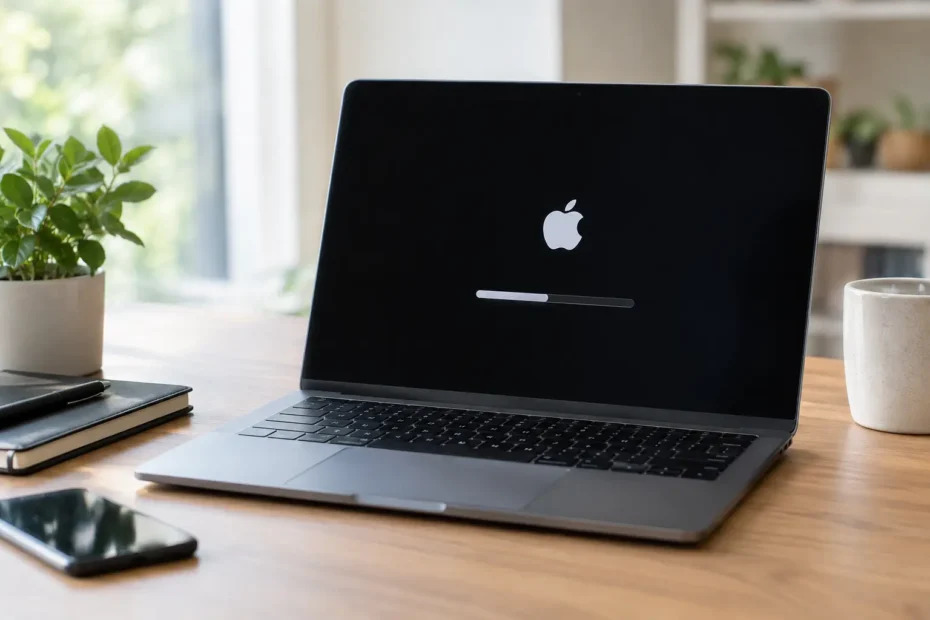
A Mac that suddenly shows a black screen, a folder with a question mark, or no response beyond a faint charging sound can feel like a total loss. Mac firmware recovery is one of the first advanced procedures worth considering when the Mac’s startup firmware or recovery environment has become damaged, especially on Apple silicon and T2-equipped Intel Macs.
The key is knowing what problem you are actually solving. A firmware revive may bring a Mac back without erasing its internal storage. A firmware restore can reinstall low-level software and macOS, but it erases the drive. Neither procedure fixes every no-start Mac, and using the wrong approach can turn a recoverable data situation into a data-loss situation.
What Mac Firmware Recovery Actually Repairs
Firmware is the low-level software that helps a Mac initialize its hardware and begin the startup process. On modern Macs, that process is closely tied to security features, the Secure Enclave, RecoveryOS, and the internal SSD. If an interrupted update, power failure, failed macOS installation, or system fault damages this layer, the Mac may not start normally enough to reinstall macOS on its own.
Mac firmware recovery is performed from a second, working Mac. The failed Mac is placed into DFU mode, then a compatible recovery tool is used to communicate with it over a USB-C data connection. This is not the same as starting Internet Recovery, holding Option at startup, or reinstalling macOS from a bootable installer. DFU recovery reaches deeper into the startup chain.
This process applies to Apple silicon Macs, including many MacBook Air, MacBook Pro, iMac, Mac mini, and Mac Studio models, as well as Intel Macs with an Apple T2 Security Chip. Older Intel Macs without a T2 chip use different recovery paths. That distinction matters because a procedure that is correct for an M-series Mac may not apply at all to a 2015 MacBook Pro.
Revive vs. Restore: The Decision That Matters Most
A revive is the data-conscious first step
A revive updates or repairs the firmware and recovery environment without intentionally erasing the Mac’s internal storage. When the issue is limited to corrupted firmware or RecoveryOS, a revive can return the Mac to a usable state while preserving user files, applications, and settings.
For a Mac that stopped booting during an update but had been working properly before, a revive is usually the sensible first attempt. It is the lower-risk option when the data has not been backed up or when the files are business-critical.
A revive is not a promise that data is safe. If the SSD has failed, the file system is damaged, or the logic board has another fault, the Mac may still fail to start afterward. But it avoids erasing the drive before you know whether that is necessary.
A restore is more complete and more destructive
A restore reinstalls firmware, recovery components, and the operating system. It also erases the internal storage. It is appropriate when a revive fails, the recovery environment remains unavailable, or the Mac is being prepared for a clean handoff after data has already been secured.
This is where many urgent repairs go wrong. A Mac may appear dead, but its SSD and files may still be intact. Starting with a restore because it seems faster can permanently remove the very data the owner needs most. If your Mac contains client files, school projects, family photos, accounting records, or an unbacked-up creative library, pause before authorizing an erase.
Signs Firmware May Be the Problem
Firmware failure is only one possible cause of a dead or unbootable Mac. It becomes more likely when symptoms begin immediately after a macOS update, failed installation, or unexpected shutdown during an update.
Common signs include:
- The Mac shows no normal startup image after an interrupted update.
- Recovery mode will not load, even though the Mac appears to receive power.
- The Mac repeatedly restarts, displays an error symbol, or remains on a black screen.
- A T2 or Apple silicon Mac is detected by a second Mac in DFU mode.
These signs are useful clues, not a final diagnosis. A black screen can also be caused by a failed display, backlight circuit, battery issue, USB-C power problem, liquid damage, or logic board fault. A Mac that is completely unresponsive may need board-level testing before any software procedure will help.
What You Need Before Attempting a DFU Recovery
A proper firmware recovery requires more than two Macs and a random charging cable. You need a compatible working Mac with current software, a reliable USB-C cable that supports data, and the correct DFU port for the affected model. Many USB-C cables provide charging only or have unreliable data connections. That can cause the process to fail halfway through or prevent the failed Mac from appearing at all.
You also need stable power for both machines. Do not attempt this on a nearly empty battery, through an unreliable hub, or during a storm where power may drop. Connect the working Mac directly to the affected Mac when possible.
The DFU button sequence and cable port vary by model. Apple silicon desktop Macs, Apple silicon notebooks, and T2-equipped Intel models do not all enter DFU mode the same way. Guessing at the sequence often wastes time and can make it appear that the Mac has a deeper failure than it actually does.
If the data matters, document the Mac’s condition before doing anything destructive. Note whether it had recent liquid exposure, whether it powered on before the update failed, whether it was asking for a firmware password, and whether FileVault was enabled. Those details help determine whether recovery, data extraction, or board repair should come first.
Why a Firmware Recovery Can Fail
A failed revive or restore does not automatically mean the Mac is beyond repair. It may point to a cable issue, an incorrect DFU port, outdated software on the host Mac, or a hardware problem that is preventing communication with the target Mac.
Liquid damage is a frequent example. A Mac may accept power but have corrosion around USB-C, charging, storage, or power-management circuits. In that case, the DFU process may disconnect, fail with an error, or never detect the Mac. Repeating restores will not repair damaged components.
Storage problems create another gray area. On many modern Macs, the SSD is integrated with the logic board or tied to the board’s security architecture. If the internal storage has failed, a successful firmware procedure may still end with a folder icon, recovery error, or inability to install macOS. The next step should be targeted diagnostics, not repeated erases.
There is also a practical limitation: firmware recovery cannot repair a failed display, water-damaged keyboard, blown backlight circuit, dead battery, or board-level power fault. The Mac may need component-level repair before it can complete a restore or boot reliably.
Protecting Your Data Before You Choose a Restore
If your Mac still reaches Recovery, Disk Utility, Target Disk Mode, or Share Disk, treat that access as valuable. Copy essential files before making major changes. If the Mac can boot intermittently, back it up immediately rather than assuming it will continue to do so tomorrow.
For Macs that will not boot but may still have intact storage, professional evaluation can be the safer route. The right repair order depends on the failure. Sometimes a revive is enough. Sometimes a damaged power rail or USB-C controller must be repaired first so the Mac can communicate in DFU mode. In other cases, data recovery needs to happen before a restore is considered.
This is why transparent diagnosis matters. A shop should be able to tell you whether it is proposing a revive, a restore, a macOS reinstall, or hardware repair, and whether each option puts data at risk. Those are not interchangeable services.
When Expert Diagnosis Is Worth It
A straightforward DFU revive can be a reasonable DIY job for a technically confident owner with a current second Mac, the right cable, verified instructions for the exact model, and a recent backup. The trade-off is that troubleshooting a failed attempt can become complicated quickly.
Professional help makes more sense when the Mac holds unbacked-up data, has any history of liquid exposure, is not detected in DFU mode, or fails a revive or restore. It is also the better choice when the Mac has no power, no backlight, charging issues, or symptoms that suggest a logic board problem rather than software corruption.
At YourMac.Repair, customers work directly with Eduardo for clear diagnostics and repair-first options, including advanced logic board work when firmware recovery is only part of the problem. For Mac owners in Central Florida, that means you can get an answer based on the condition of your specific machine rather than an automatic recommendation to erase it or replace it.
Before you approve a restore, ask one simple question: “Is there a reasonable path to try a revive or assess the hardware without erasing my data?” The answer can save far more than the cost of a repair.
Need Mac or iPhone repair in Winter Garden / Orlando?
YourMac.Repair — board-level Apple repair with honest diagnosis and fast turnaround. We say YES when Apple says NO.
- Mac Logic Board Repair — liquid damage specialist
- Mac Screen Repair
- Mac Battery Replacement
- Mac & PC Data Recovery
- iPhone Screen Repair — same-day service
📞 (407) 580-9965 · WhatsApp · 819 Marsh Reed Dr, Winter Garden, FL 34787