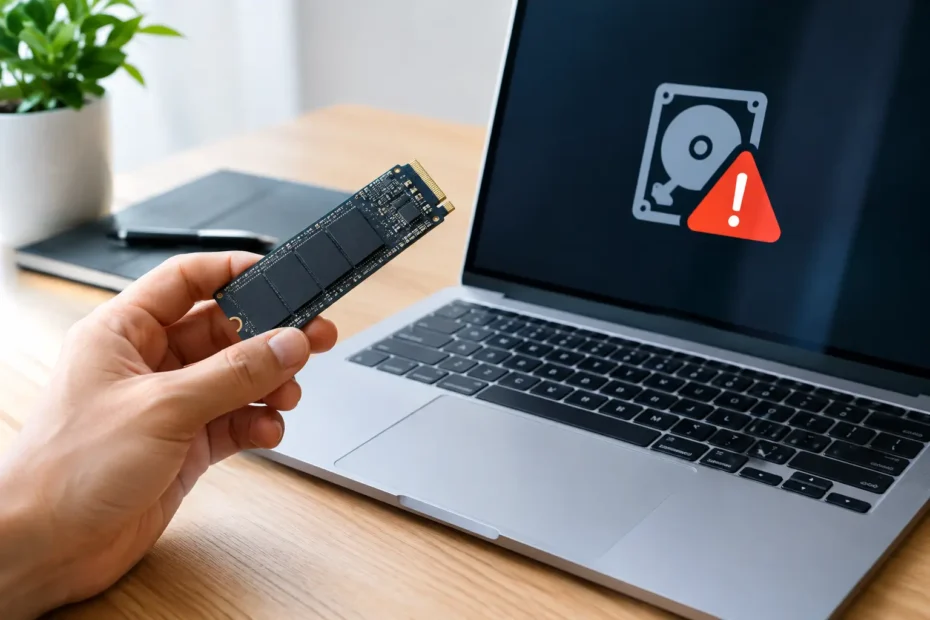
A Mac that takes a little longer to start up, freezes while opening familiar files, or suddenly shows a folder with a question mark is not always dealing with a macOS problem. Those can be early signs of storage trouble. Knowing how to detect failing Mac SSD behavior early gives you the best chance of protecting work files, photos, client records, and everything else stored on the machine.
Unlike old hard drives, SSDs usually do not make clicking or grinding sounds before they fail. They can work normally one day and become unreadable the next. That is why unusual performance changes deserve attention, especially if the Mac contains data you cannot easily replace.
Signs That Help Detect a Failing Mac SSD
A single crash does not prove that an SSD is bad. macOS updates, a full drive, failing memory, battery problems, and logic board faults can produce similar symptoms. The concern rises when several storage-related symptoms happen repeatedly or become worse over a few days or weeks.
One of the most common warning signs is a Mac that starts normally but takes much longer than usual to reach the login screen. You may also see spinning beachballs when opening documents, launching apps, or browsing folders that were previously fast. Files can take an unusually long time to copy, save, or attach to an email.
Unexpected restarts are another concern, particularly when they happen during file transfers, video editing, software installation, or startup. A Mac may also freeze completely and require a forced shutdown. If it restarts to a folder-with-question-mark screen or cannot consistently find its startup disk, the storage system needs attention immediately.
Watch for files that will not open, folders that appear empty, duplicate files with strange names, or error messages saying a file cannot be read or copied. In more advanced cases, the drive may mount as read-only, preventing you from saving changes. Treat that as a data-protection emergency, not an inconvenience to work around.
These symptoms are especially serious on a MacBook or desktop where the SSD is soldered to the logic board. Many newer Macs do not have a separately removable internal drive, and waiting for total failure can make recovery much more difficult.
Rule Out the Simple Problems First
Before assuming the SSD has failed, check available storage. A Mac with only a few gigabytes free can become painfully slow, fail during updates, and show application errors. Freeing up space may help performance, but do not start deleting major folders until you have a current backup.
Restart the Mac and look for a pattern. Does the issue occur only in one application? Does it happen when a particular external drive, dock, or USB device is attached? Does the Mac become stable when using a different user account? Those details help separate a software conflict from a hardware issue.
You can also start in macOS Recovery and run Disk Utility First Aid on the internal volume. First Aid can repair certain directory and file-system errors. It is useful, but it is not a clean bill of health for the physical SSD. A drive can pass First Aid and still have intermittent NAND, controller, or logic board-level problems.
Apple Diagnostics may identify some hardware faults, but it does not detect every storage issue. On many Macs, SSD health data is limited or unavailable to the user. A “no issues found” result should not outweigh repeated freezing, read errors, or startup failures.
Protect Your Data Before Testing Further
If you suspect storage failure, your first job is to stop creating unnecessary writes to the drive. Do not run a major macOS upgrade, reinstall macOS, use aggressive cleanup software, or keep rebooting the Mac in hopes that it will fix itself. Those actions can add stress to an unstable drive and may overwrite recoverable data.
Make a backup as soon as possible if the Mac is still usable. Copy irreplaceable files first: current projects, Desktop and Documents folders, business records, photos, and any data stored outside cloud-sync folders. Then create a complete backup if time and drive stability allow it.
If copying produces errors, stalls, or causes the Mac to crash, stop forcing the process. Repeated attempts can make an already weak SSD less stable. A professional can determine whether a targeted recovery approach is safer than continuing to use the machine.
If FileVault is enabled, keep the account password and recovery key available. Encryption protects your information, but it can also make data recovery far more dependent on the original Mac hardware. On Apple silicon and T2-equipped Macs, the relationship between the internal storage, security hardware, and logic board is particularly significant.
When the SSD May Not Be the Actual Problem
Storage symptoms can come from elsewhere. Liquid damage, for example, can corrode board-level circuits that communicate with the SSD. A failing power circuit can cause random shutdowns that look like drive corruption. Memory faults, overheating, and severe macOS corruption may also cause beachballs, startup problems, and spinning cursors.
That is why replacing parts based on a guess is expensive and risky. Older MacBook Pro, MacBook Air, iMac, and Mac mini models may use removable SSDs that can be tested or upgraded. Many newer models use storage chips integrated into the logic board. In those machines, “replace the SSD” may not be a realistic repair path.
A proper diagnosis checks the Mac as a system. That includes startup behavior, recovery-mode results, power stability, board-level communication, and whether the storage can be consistently read. The answer may be a replaceable drive, a logic board repair, data recovery work, or a software repair. It depends on the model and the exact failure.
Do Not Wait for a Complete Startup Failure
The most costly SSD failures are the ones ignored after the first warning. A Mac that only freezes once a day can still fail at the exact moment you need to send a proposal, finish an exam, export a video, or access tax records. Once it will not boot or no longer recognizes its internal storage, the options can narrow quickly.
Bring the Mac in while it still starts, even inconsistently. A technician can often gather better diagnostic information and take a more careful approach to your data while the drive remains partially accessible. If the machine has had a spill, do not power it back on repeatedly. Liquid damage and storage trouble together require fast, deliberate diagnosis.
For Central Florida Mac owners, YourMac.Repair provides direct access to Eduardo, a specialist with more than 30 years of Apple experience. The focus is transparent diagnosis and repair-first options, including board-level work when a newer Mac’s integrated storage is affected.
A strange delay at startup or a file that refuses to open may be nothing more than a temporary macOS issue. But if the pattern repeats, trust the warning, make a backup, and have the Mac evaluated before a manageable problem becomes a permanent loss.
Need Mac or iPhone repair in Winter Garden / Orlando?
YourMac.Repair — board-level Apple repair with honest diagnosis and fast turnaround. We say YES when Apple says NO.
- Mac Logic Board Repair — liquid damage specialist
- Mac Screen Repair
- Mac Battery Replacement
- Mac & PC Data Recovery
- iPhone Screen Repair — same-day service
📞 (407) 580-9965 · WhatsApp · 819 Marsh Reed Dr, Winter Garden, FL 34787