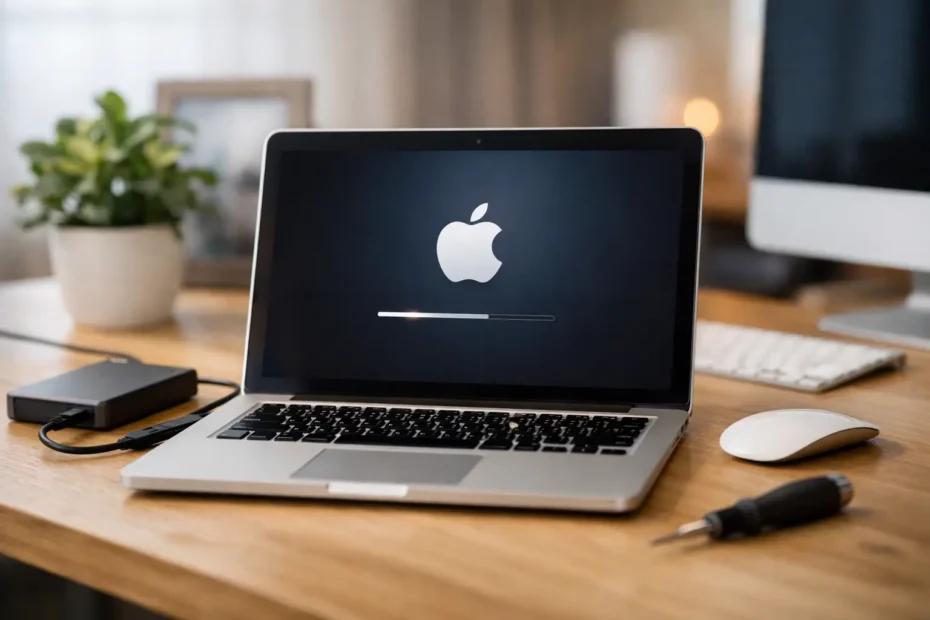
A lot of older Macs still run perfectly well – until the software falls behind. You open an app, get a message that your macOS version is too old, and suddenly a machine that worked fine yesterday feels obsolete. That is usually when people start searching for how to upgrade unsupported macOS, and the answer is yes, it can often be done. The better question is whether it should be done on your specific Mac, and how to do it without turning a stable machine into a problem.
What “unsupported” actually means
When Apple marks a Mac as unsupported for a newer macOS version, it usually means that model no longer appears on the official compatibility list. It does not always mean the hardware is incapable of running the system. In many cases, the CPU, SSD, graphics, and memory are still good enough for normal work.
What changes is Apple support. Drivers may be limited, firmware expectations may differ, and certain features may not work exactly as they do on newer machines. That is why unsupported upgrades are possible, but not all of them are smart.
This is where a lot of DIY articles miss the point. The goal is not just to install a newer macOS. The goal is to keep the Mac usable, stable, and worth trusting with your files.
How to upgrade unsupported macOS without guessing
The usual method involves using a patching tool that modifies the installer so it can run on Macs Apple no longer approves for that version. The best-known tools are designed by the enthusiast community and can be very effective, but they still require judgment. A successful install is only part of the job. Post-install patches, graphics acceleration, Wi-Fi support, USB behavior, sleep issues, and software updates all matter.
Before doing anything, identify the exact Mac model, current macOS version, storage type, RAM amount, and overall health of the machine. A 2012 MacBook Pro with an SSD and healthy battery is a very different candidate than a 2011 iMac with a failing hard drive and graphics issues.
Then back up everything. Not the files you think matter most – everything. Unsupported upgrades should never start without a full backup because if the installation fails, rolls back badly, or causes corruption on an already aging drive, recovery gets harder fast.
After that, create a bootable installer, apply the patching method appropriate for the target macOS version and hardware, install the operating system, and then apply any required post-install patches. On paper that sounds simple. In practice, the details are what make the difference between a useful upgrade and a machine that loses Wi-Fi or boots with sluggish graphics.
The real trade-offs most people should know first
Unsupported upgrades are not automatically risky, but they are never exactly the same as an official install. Some Macs perform surprisingly well on newer versions. Others technically run them but feel slower, hotter, or less reliable.
Graphics is one of the biggest variables. Some older Macs lose proper acceleration without patching, and that can affect everything from video playback to basic window movement. Wireless behavior can also change, especially on models with older Wi-Fi or Bluetooth hardware. Features like AirDrop, Handoff, Sidecar, or certain security functions may remain limited even if the OS installs correctly.
There is also the update question. A Mac that runs well after the first upgrade may need extra care every time a system update arrives. If you want a machine you can update casually without thinking, unsupported macOS is not always the right path.
That does not make the process bad. It just means the right outcome depends on how you use the Mac. For web browsing, office work, school tasks, light creative work, and app compatibility, an unsupported upgrade can add years of useful life. For production-critical workflows, audio work with strict plugin requirements, or business systems that cannot tolerate surprises, caution matters more.
Which Macs are usually good candidates
In general, newer unsupported Macs do better than older unsupported Macs. A machine that only missed Apple support by a year or two usually has a better chance of running a newer OS comfortably. SSD-equipped Macs also perform much better than those still using spinning hard drives.
Good candidates often include Intel Macs with enough RAM, a healthy SSD, and no existing hardware faults. Marginal candidates are machines with failing batteries, overheating issues, damaged keyboards, liquid exposure history, or hard drives that are already slow. If the Mac has kernel panics, random shutdowns, fan problems, or GPU artifacts before the upgrade, installing a newer OS will not solve those problems. It usually exposes them faster.
That is why hardware condition should be checked before software work begins. Sometimes the best upgrade path starts with an SSD upgrade, thermal service, battery replacement, or data backup strategy instead of the OS itself.
When not to upgrade unsupported macOS
There are cases where staying on the current OS is smarter. If you rely on older 32-bit software, music production tools with legacy drivers, or printer and scanner hardware that only works on older systems, moving forward can break more than it fixes.
The same applies if your Mac is already near its performance limit. Newer macOS versions typically expect more from graphics, storage, and memory. If the machine is barely comfortable now, forcing a newer system onto it may shorten its useful life instead of extending it.
Security is also more nuanced than people think. A newer unsupported macOS can improve app compatibility and offer more modern protections, but if the patching process introduces instability or leaves certain hardware functions unreliable, that trade-off may not be worth it for every user.
Common mistakes that cause trouble
Most failed unsupported macOS upgrades come from rushing. People skip the backup, use the wrong installer, patch the wrong model, or ignore early warning signs like SMART errors on the drive or an aging battery that cannot handle long install cycles.
Another common mistake is blaming the OS for unrelated hardware problems. If a Mac has a weak SSD cable, failing logic board, liquid damage residue, or a graphics issue, the upgrade may be the moment it finally stops cooperating. The software did not create the fault. It revealed it.
There is also a tendency to choose the newest possible macOS just because it is available. That is not always the best move. Sometimes the most stable result comes from choosing a version one step below the latest, especially on older Intel systems where compatibility is good but hardware overhead stays reasonable.
How to upgrade unsupported macOS with fewer surprises
Start by choosing the target OS based on the Mac, not on hype. Check the exact model identifier and compare known behavior for that specific hardware. If the Mac needs reliability for work or school, favor the version with the best track record over the newest one.
Make a complete backup, then test the drive health before installation. If the Mac still has a mechanical hard drive, strongly consider replacing it with an SSD first. That single change often matters more than the OS version.
Run the install only after confirming the machine is stable on its current system. If it overheats, shuts down, or behaves erratically now, address that first. Once the new OS is on, verify graphics, Wi-Fi, Bluetooth, audio, camera, sleep, and software updates before calling the job done.
For many owners, this is the point where professional help saves time and data. A specialist can tell you whether the Mac is a good candidate before the process begins, and whether the device needs hardware work first. That is especially valuable when the Mac contains business files, school projects, client work, or irreplaceable photos.
Why expert evaluation matters on older Macs
Unsupported macOS upgrades sit right at the line between software service and hardware reality. A Mac may be patchable in theory and still be a poor candidate because the battery is swollen, the thermal paste is dry, the SSD is failing, or the board has early signs of corrosion.
That is why direct, honest diagnosis matters. At YourMac.Repair, this kind of work makes sense only when it gives the customer a practical result – more life, better app support, and solid day-to-day reliability without wasting money on a machine that is already at the end of the road.
If your older Mac still has good bones, an unsupported macOS upgrade can be one of the most cost-effective ways to keep it useful. Just treat it like technical work, not a casual click-and-go update, and your Mac has a much better chance of staying productive instead of becoming your next recovery job.
Sometimes the smartest upgrade is not the newest one. It is the one your Mac can run well tomorrow, next month, and when you actually need it.
Need Mac or iPhone repair in Winter Garden / Orlando?
YourMac.Repair — board-level Apple repair with honest diagnosis and fast turnaround. We say YES when Apple says NO.
- Mac Logic Board Repair — liquid damage specialist
- Mac Screen Repair
- Mac Battery Replacement
- Mac & PC Data Recovery
- iPhone Screen Repair — same-day service
📞 (407) 580-9965 · WhatsApp · 819 Marsh Reed Dr, Winter Garden, FL 34787