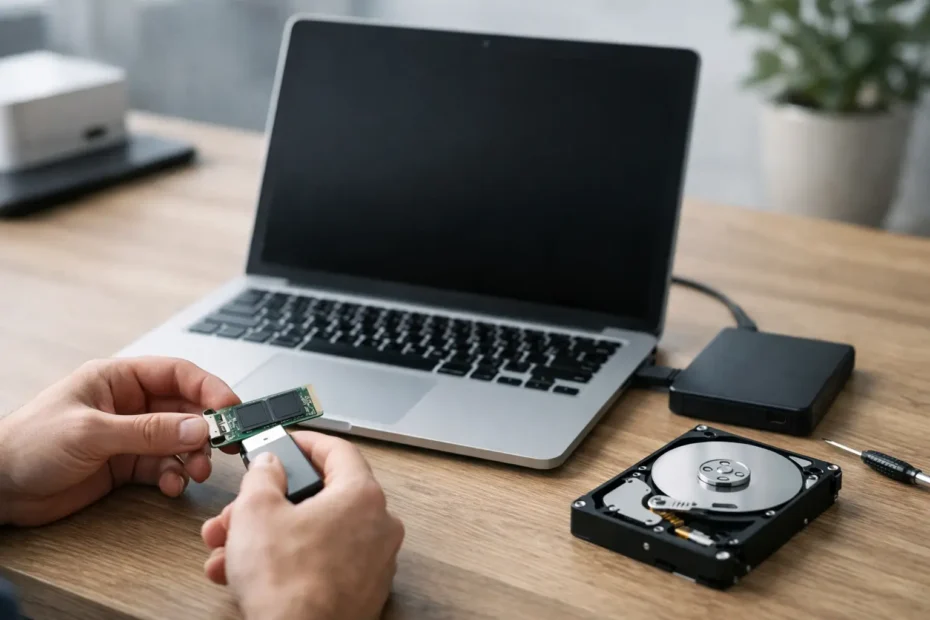
A MacBook that will not turn on can turn an ordinary morning into an emergency, especially when it holds a client project, family photos, tax records, or a semester of work. If you are searching for how to recover files from a dead MacBook, the first rule is simple: do not keep forcing it to start. Repeated power attempts, the wrong charger, or a rushed DIY disassembly can turn a repairable problem into a more difficult data recovery case.
A dead MacBook does not always mean the storage is dead. In many cases, the failure is limited to a battery, charging circuit, display, keyboard, or logic board component. The right approach depends on the model, what happened before it failed, and whether the data is protected by modern Apple encryption.
Start by Defining What “Dead” Means
Customers often describe a MacBook as dead when it has no visible response. That could mean no charging light, no startup sound, no screen image, no fan activity, or no response to the power button. But a black screen is not necessarily a no-power condition. A failed display or backlight can make a working Mac appear completely dead.
Before assuming the worst, check the basics once and carefully. Use a known-good Apple-compatible charger and cable, inspect the USB-C or MagSafe port for debris or corrosion, and leave the Mac connected for at least 20 minutes. If possible, try a different outlet. Do not use a damaged cable or an unknown high-wattage adapter from a drawer.
If the Mac powers on but the display stays black, listen for fan activity, startup chimes on older models, trackpad clicking, or the sound of notifications. Connecting an external monitor may help determine whether the computer is running with a failed internal display. This is a useful distinction because the files may still be immediately accessible without any recovery process.
Do Not Erase, Restore, or Reinstall macOS Yet
When a MacBook fails to start, recovery mode may offer options such as reinstalling macOS, erasing the disk, or restoring the system. Those tools can be useful for a software problem, but they are not a safe first move when your files are the priority.
Reinstalling macOS does not always erase personal data, but a failed installation, storage issue, or incorrect selection can create more risk. Erasing the internal drive is obviously destructive. A full restore on some newer Macs can also complicate an already unstable hardware situation.
If the Mac was working normally until a spill, drop, sudden shutdown, or charging issue, treat it as a hardware and data-preservation problem first. Write down what happened, whether the device became hot, whether it showed a folder with a question mark, and whether it had any recent warnings about battery or storage health. Those details help a technician diagnose the failure efficiently.
How to Recover Files From a Dead MacBook Safely
The recovery method depends heavily on the MacBook’s age and internal design. Older MacBooks may have a removable SSD or hard drive. Many newer MacBook Air and MacBook Pro models have storage soldered directly to the logic board. Apple silicon Macs and many Intel models with the T2 security chip also use hardware-based encryption tied to the original logic board.
That last point matters. On a modern encrypted Mac, removing the storage chips and placing them in another computer will not make the files readable. The original Mac’s security hardware must be functioning well enough to unlock the data. This is why a logic board repair can be the most practical form of data recovery for a newer MacBook.
If the MacBook Still Starts Intermittently
A Mac that starts once in a while is a priority case. Do not spend time troubleshooting every possible cause. If it boots, copy the most irreplaceable files first to an external drive or a trusted cloud location. Start with active work folders, Desktop, Documents, Photos Library, accounting files, and anything not already synchronized.
If the battery is swollen, the Mac runs unusually hot, or it shuts down when moved, stop using it after that essential backup. Continuing to operate a physically compromised device can cause additional damage.
If It Boots but macOS Will Not Load
A Mac that reaches recovery mode may allow files to be copied through Terminal or accessed from another Mac, depending on the model and the condition of the internal storage. Intel MacBooks may support Target Disk Mode, which can make the Mac appear as an external drive when connected to another Mac.
Newer Apple silicon MacBooks use a different process, commonly called Mac Sharing Mode. It can work well when the Mac is able to power on and authenticate the user, but it will not solve a true no-power condition. You may also need the FileVault password or a valid user account password to access encrypted files.
If you are not comfortable working in recovery tools, stop before changing disks, partitions, or security settings. Data recovery is often less about a clever command and more about avoiding a destructive mistake.
If There Is No Power at All
No power after liquid damage, a power surge, a failed USB-C port, or an internal short usually requires board-level diagnostics. A shop that only replaces entire assemblies may tell you the logic board needs replacement. That may restore the computer, but it can be the wrong answer if the storage is soldered and the data is encrypted.
A component-level technician can inspect the board for corrosion, shorted power rails, damaged charging components, and failed power-management circuits. The goal may be to repair the board just enough to boot, unlock the drive, and transfer the data safely. That is often more cost-effective than a full board replacement and offers a better chance of recovering files from a newer MacBook.
Liquid Damage Requires a Different Response
If liquid was involved, turn the MacBook off immediately if it is still on. Disconnect power and do not charge it. Do not use rice, a hair dryer, compressed air, or a heat gun. Rice does not remove residue, and heat can speed corrosion damage or warp sensitive components.
Liquid damage is unpredictable because the Mac may fail hours or days after the spill. A coffee, soda, or wine spill leaves conductive residue that can continue causing shorts even after the exterior looks dry. Fast professional cleaning and inspection gives the best chance of preserving both the computer and its data.
When an External Drive or Backup Can Save Time
Before approving advanced recovery work, check whether the files already exist elsewhere. Many people forget that iCloud Drive, OneDrive, Dropbox, Google Drive, Time Machine, or an external backup may contain most of what they need. Log in from another device and verify the actual folders and file dates rather than assuming synchronization was complete.
Photos can be especially confusing. If iCloud Photos was enabled with optimized storage, full-resolution originals may be available in iCloud. If it was not enabled, the only complete photo library may be on the MacBook itself. The same applies to local email archives, music projects, virtual machines, and professional editing libraries, which may not be fully cloud-synced.
What to Bring to a Data Recovery Appointment
Bring the MacBook, its charger, and any information that helps establish the timeline of failure. If you know the macOS login password, bring it or be prepared to enter it yourself. For FileVault-protected Macs, that password is often necessary to access the data after the hardware is repaired.
Be clear about what matters most. Is the goal to recover everything, retrieve one accounting database, save a Photos library, or get the MacBook working again? A transparent diagnosis should separate the hardware repair cost from the data transfer plan and explain the realistic chances before major work begins.
For Central Florida Mac owners, YourMac.Repair provides direct access to Eduardo for advanced logic board diagnosis, liquid damage treatment, and data-focused repair. That direct technician communication matters when the difference between replacing a part and repairing a board can determine whether your files remain accessible.
Protect the Recovered Files Before Going Back to Work
Once the data is recovered, keep at least two copies before making changes to the original MacBook. Put one copy on a quality external drive and another in a separate location, such as a reputable cloud backup service. Then open the critical files and confirm they are not merely copied, but usable.
A dead MacBook is stressful because the computer and the data often feel like the same problem. They are not always the same problem. Preserve the device, avoid destructive software steps, and get a proper diagnosis early. The best recovery outcome usually begins with the decision to stop guessing.
Need Mac or iPhone repair in Winter Garden / Orlando?
YourMac.Repair — board-level Apple repair with honest diagnosis and fast turnaround. We say YES when Apple says NO.
- Mac Logic Board Repair — liquid damage specialist
- Mac Screen Repair
- Mac Battery Replacement
- Mac & PC Data Recovery
- iPhone Screen Repair — same-day service
📞 (407) 580-9965 · WhatsApp · 819 Marsh Reed Dr, Winter Garden, FL 34787