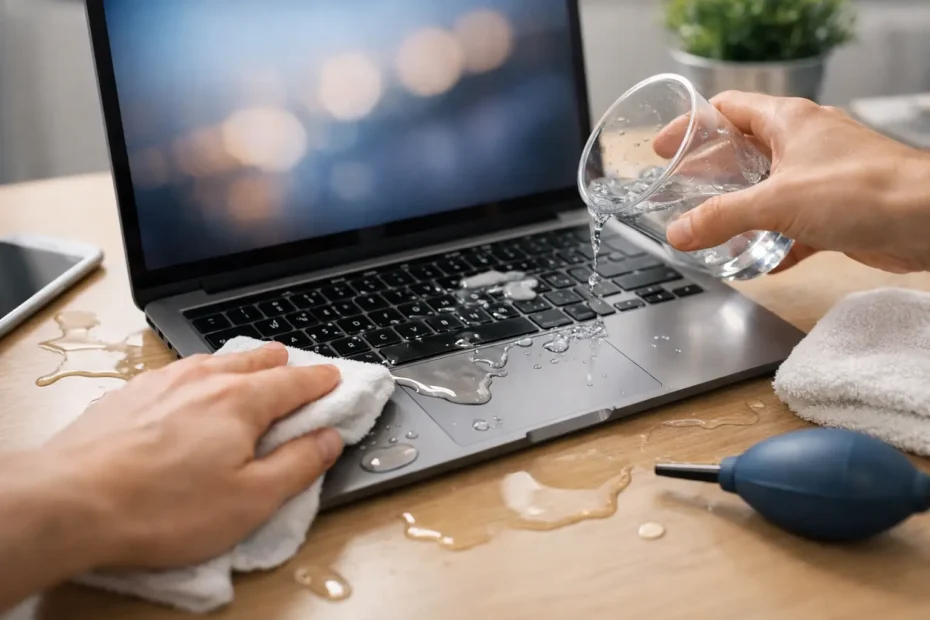
Coffee across a MacBook keyboard is not a situation to monitor for a few hours. Every minute the Mac remains powered, connected to a charger, or left with liquid inside can increase the chance of a short circuit and corrosion. This liquid spill cleanup for Mac guide explains the immediate steps that give your Mac and your data the best possible chance.
The goal is simple: stop electrical activity, remove surface liquid without forcing it deeper, and get the machine professionally evaluated before residue begins damaging components. A Mac that still turns on after a spill is not necessarily safe. In fact, delayed failures are common when a small amount of liquid reaches the logic board, battery connector, keyboard layers, or display circuits.
First Steps After a Mac Liquid Spill
Turn the Mac off immediately. If it is responsive, use the normal shutdown process only if it happens quickly. If the display is frozen, the keyboard is acting strangely, or the Mac will not shut down, hold the power button until it powers off.
Next, unplug the charger and disconnect every accessory, including USB-C hubs, external drives, monitors, headphones, and SD cards. Do not reconnect power just to see whether the Mac still works. Charging a wet Mac is one of the most common ways a manageable spill becomes a major logic board repair.
Use a clean, absorbent cloth to blot liquid from the keyboard, trackpad, ports, and exterior surfaces. Blot rather than wipe aggressively. You do not want to push liquid through key openings or into ports.
If the spill occurred on a MacBook, place it keyboard-side down on a clean towel at a slight angle so liquid can drain away from the keyboard area. Do not shake it. Shaking can move liquid into areas that were originally dry, including the display, fans, speakers, and logic board.
For an iMac, Mac mini, or Mac Studio, shut it down, disconnect power, and keep the unit upright. These systems have different vent and port layouts, so turning them upside down can direct liquid into components that were not affected initially. Surface cleanup is fine, but internal inspection should be left to a qualified technician.
What Not to Do After a Spill
The wrong cleanup method can cause more damage than the liquid itself. Avoid these common reactions:
- Do not turn the Mac back on to test it.
- Do not plug it in or connect a charger.
- Do not use a hair dryer, heat gun, oven, or direct sunlight.
- Do not put it in rice, cat litter, or another household drying material.
- Do not spray cleaner, compressed air, or alcohol into ports or under keys.
- Do not assume it is fine because it worked for a few minutes afterward.
Rice does not remove sugary, acidic, or mineral-heavy residue. It also does not clean contamination from the logic board. Heat can warp plastics, damage batteries, loosen adhesives, and accelerate corrosion in places you cannot see.
The same is true of leaving a Mac open in front of a fan for several days. Air drying may remove visible moisture, but it does not neutralize residue left by coffee, soda, wine, juice, sparkling water, or tap water. That residue can continue creating electrical paths and corrosion long after the Mac appears dry.
Why the Type of Liquid Matters
Plain distilled water is less harmful than a sweet drink, but no liquid spill is harmless inside a computer. Tap water contains minerals. Coffee and tea can leave conductive residue. Soda, juice, sports drinks, and alcohol mixers introduce sugar and acids that become sticky and corrosive. Milk-based drinks add proteins and fats that can contaminate keyboards and internal components.
The amount and location of the spill matter just as much. A few drops on the palm rest may be limited to the keyboard or trackpad. A full drink entering the keyboard, vents, or side ports can reach the battery, logic board, display connectors, and storage circuits.
MacBook models are especially vulnerable because the keyboard sits directly above sensitive hardware. On many modern Macs, the SSD is integrated with the logic board. If the board fails, getting critical files back may require advanced repair work rather than simply removing a drive.
When to Seek Professional Liquid Damage Treatment
Professional service is the right move after any spill that entered the keyboard, ports, vents, or underside of the Mac. It is especially urgent if the Mac will not power on, is stuck in a boot loop, has no backlight, shows lines on the screen, becomes hot, smells burnt, or has keys and trackpad functions that no longer work correctly.
Do not wait for symptoms to get worse. Corrosion is not always immediate. A Mac may start normally the next day, then lose charging, keyboard input, Wi-Fi, display output, or power days later. Early treatment can make the difference between cleaning a board and replacing major components.
A proper liquid-damage evaluation goes beyond opening the bottom cover and checking for moisture. The Mac should be disassembled enough to inspect affected areas, disconnect the battery safely, identify contamination, and assess the logic board under magnification. Depending on the spill, a technician may need to clean board-level residue, test power rails, inspect connectors, and determine whether the keyboard, battery, display, or trackpad has been affected.
That level of diagnosis matters because many shops only offer a full-board replacement when a Mac has liquid damage. In some cases, replacement is the practical answer. In others, component-level repair can restore the original logic board and preserve data at a far more reasonable cost.
Protecting Your Files During a Spill Repair
If the Mac still starts, resist the urge to spend hours backing up data while liquid may still be active inside. Shut it down first. Tell the repair specialist that data is your top priority. They can assess whether it is safe to attempt a controlled backup after inspection or whether board repair is needed to access the files.
This is particularly important for newer Apple silicon MacBooks and many recent Intel models. Their internal storage is often soldered to the logic board and protected by encryption. If the board cannot power on or communicate correctly, data recovery becomes more complex. A repair-first approach may be the best path to recovering business documents, photos, creative projects, client files, and local email archives.
If you already use Time Machine, iCloud Drive, or another backup system, that is helpful, but it does not eliminate the need for careful treatment. Local files, desktop folders, app data, and recent work may not yet be fully synchronized.
What a Transparent Repair Process Should Look Like
You deserve a clear diagnosis, not a vague statement that the Mac is “water damaged” and beyond repair. A reputable specialist should explain what was found, which components are affected, whether corrosion reached the logic board, and what repair options make sense before proceeding.
The right solution depends on the Mac’s age, model, condition, and the value of the data inside it. A keyboard-only spill on an older MacBook may call for targeted parts replacement. A newer MacBook Pro with important files and logic board contamination may justify detailed board-level repair. If the repair cost approaches replacement value, an honest technician should say so.
At YourMac.Repair, customers work directly with Eduardo, a Mac specialist with more than 30 years of Apple experience. That direct access matters when a spill involves no power, charging failure, display issues, or data recovery concerns. You should be able to ask what happened, understand the realistic options, and make an informed decision without being pushed toward an unnecessary replacement.
After Your Mac Has Been Repaired
Once the Mac is stable, create or verify a reliable backup routine. Keep at least one backup separate from the Mac itself, whether that means an external drive or a trusted cloud service. Spills are unpredictable, but losing irreplaceable files should not be.
For day-to-day prevention, keep drinks on a separate surface whenever possible, use a spill-resistant bottle near workstations, and avoid placing a Mac directly below shelves or plants. A keyboard cover may help with dust and minor splashes, but it is not a guarantee against liquid reaching the internals.
A spilled drink does not automatically mean your Mac is finished. Power it down, keep it unplugged, and get it assessed before hidden corrosion turns a repairable accident into permanent data loss.
Need Mac or iPhone repair in Winter Garden / Orlando?
YourMac.Repair — board-level Apple repair with honest diagnosis and fast turnaround. We say YES when Apple says NO.
- Mac Logic Board Repair — liquid damage specialist
- Mac Screen Repair
- Mac Battery Replacement
- Mac & PC Data Recovery
- iPhone Screen Repair — same-day service
📞 (407) 580-9965 · WhatsApp · 819 Marsh Reed Dr, Winter Garden, FL 34787