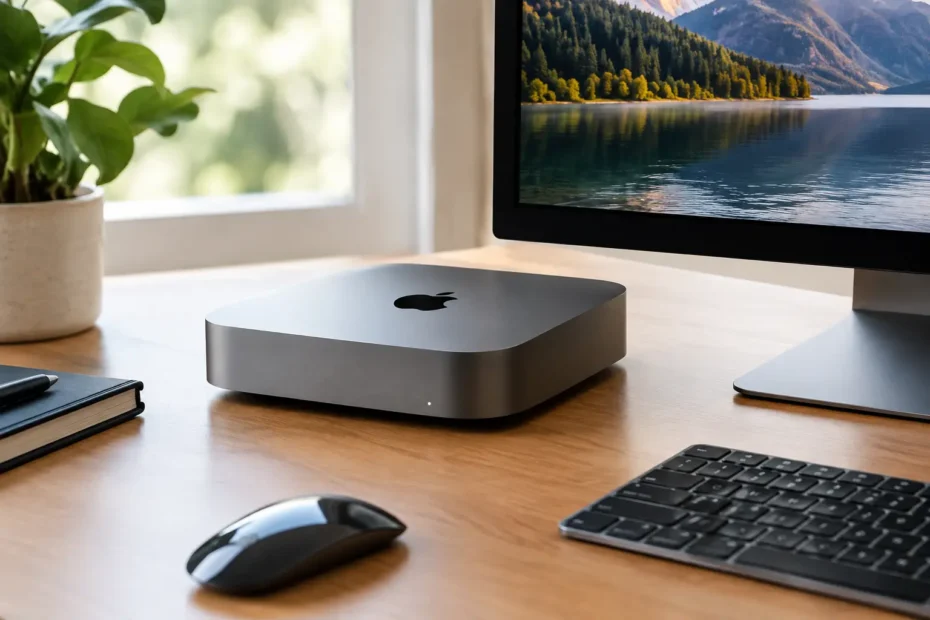
A Mac mini that once felt quick can gradually become frustrating: apps bounce in the Dock too long, video calls stutter, the beach ball appears during simple work, and startup takes far longer than it should. A proper Mac Mini performance tune up is not about installing a questionable cleaner or closing random processes. It is about finding the real bottleneck – storage, heat, memory pressure, aging hardware, macOS problems, or, in some cases, an underlying board-level fault.
The right fix depends heavily on which Mac mini you own. An Intel model from 2012, 2014, or 2018 has very different upgrade and repair options from an M1, M2, or M4 Mac mini. Before spending money or deleting files, identify the cause of the slowdown.
Start With the Symptoms, Not a Guess
Performance complaints often get blamed on “old age,” but Macs are usually more specific than that. If the Mac mini is slow only after booting, too many login items or a struggling startup drive may be the problem. If it slows down after an hour of work, heat or memory pressure is more likely. If it freezes, restarts unexpectedly, loses display output, or refuses to boot, that goes beyond a routine tune up.
Open Activity Monitor and look at CPU, Memory, Energy, Disk, and Network activity while the problem is happening. A single app consuming high CPU is different from a system that is constantly using swap memory because it has run out of available RAM. Likewise, a drive with very little free space can make ordinary tasks feel sluggish even when the processor is barely working.
Do not assume that a high CPU reading is automatically bad. Photo indexing, Spotlight indexing, cloud synchronization, and a major macOS update can temporarily work the processor hard. The concern is sustained activity that matches the slowdown and continues after the expected task should be finished.
Free Up Storage the Right Way
A nearly full internal drive is one of the most common causes of slow Mac mini performance. macOS needs working room for virtual memory, temporary files, updates, caches, and application data. Once free space becomes scarce, the system has less room to manage all of it efficiently.
As a practical target, keep at least 15 to 20 percent of the internal drive free when possible. On a 256GB drive, that may mean maintaining 40GB to 50GB of available space. If your Mac is used for video editing, music production, photography, or large business files, more free space is better.
Start with the obvious items: old downloads, duplicate installers, unused applications, large Messages attachments, and old iPhone or iPad backups. Then look at what is actually taking space in macOS storage settings. Large media libraries and cloud-sync folders are frequent surprises.
An external SSD can be an excellent solution for active project files, photo libraries, and archives. It is not always a substitute for a failing or undersized internal drive, though. On many older Intel Mac minis, upgrading the internal SSD provides a major improvement in startup time, application launches, and overall responsiveness. On Apple silicon models, internal storage is integrated into the logic board and cannot be upgraded in the conventional sense, so storage management and fast external storage become more important.
Reduce Startup Clutter and Background Load
A Mac mini does not need to launch every utility, sync service, menu bar app, and updater every time it starts. Review Login Items in System Settings and remove applications that do not need to open automatically. Keep essentials such as security software, a required backup utility, or a business-critical sync service, but question everything else.
Browser extensions deserve the same attention. A crowded browser with dozens of extensions can consume substantial memory and processor time, especially when many tabs remain open all day. Disable extensions you no longer use and test whether the browser improves.
Avoid aggressive “Mac cleaning” applications that promise one-click speed. Some are harmless but unnecessary. Others remove caches that macOS will simply rebuild, push constant notifications, or create their own background processes. Manual cleanup and targeted diagnosis are safer than treating every temporary file as a problem.
Check Memory Pressure Before Blaming the Processor
Many Mac mini owners see a slow system and assume they need a faster machine. Sometimes the processor is fine, but the Mac does not have enough available memory for the workload. This is especially common with older 8GB Intel models running modern macOS, multiple browser tabs, Office apps, creative software, and video conferencing at once.
In Activity Monitor, the Memory Pressure graph offers a useful answer. Green is generally healthy. Yellow or red during normal work means the Mac is relying heavily on swap memory, using the SSD as temporary overflow. That is much slower than physical RAM and can make switching apps feel delayed.
Some Intel Mac minis can be upgraded with additional RAM, depending on the year and configuration. The 2018 Mac mini, for example, has user-replaceable memory, while the 2014 model has soldered RAM. Apple silicon Mac minis also have unified memory soldered to the board, so capacity cannot be increased after purchase.
That distinction matters. If an older upgradeable mini needs more RAM, a memory upgrade may be worthwhile. If it is a non-upgradeable system, reducing multitasking, using lighter applications, or deciding whether the machine still fits your work may be the more honest answer.
Heat Can Quietly Reduce Performance
Mac minis are compact desktops. Their cooling systems work well when clean and functioning properly, but dust buildup, blocked vents, failing fans, and dried thermal compound can raise operating temperatures. When a Mac gets too hot, it protects itself by reducing processor speed. The result is performance that starts out acceptable and becomes slow under sustained work.
This is particularly noticeable during video exports, large file conversions, virtual machines, coding projects, and extended video calls. The fan may run loudly, or it may not run as expected. A fan that never increases speed, a burning-hot enclosure, or random shutdowns are not normal tune-up issues to ignore.
Internal cleaning and, when appropriate, thermal compound replacement can help an older Mac mini maintain more consistent performance. This requires careful disassembly. It is easy to damage connectors, antennas, or components if the work is rushed, so it is best handled by a technician who regularly services Macs.
Update macOS With a Plan
macOS updates can improve security, compatibility, and stability, but the newest version is not automatically the best choice for every older Mac mini. A machine with limited RAM, a small SSD, or older graphics hardware may feel worse after a major upgrade. On the other hand, staying on an outdated system can leave you unable to run current applications or receive security updates.
Before updating, confirm that you have a current backup, enough free storage, and compatible software. If the Mac is officially unsupported, an unsupported macOS upgrade may still be possible in the right situation. That decision should be based on the model, its hardware condition, the applications you need, and whether the upgrade will genuinely improve your daily use.
A clean macOS installation can also be valuable when a system has years of migrated data, old utilities, failed updates, and unexplained software conflicts. It takes planning because data must be backed up and restored correctly, but it can eliminate problems that ordinary cleanup cannot.
Know When a Tune Up Is Really a Repair
There is a line between optimization and hardware failure. A Mac mini that is slow because it has 3GB of free storage needs maintenance. A Mac mini that will not see its internal drive, shows folder-with-question-mark errors, shuts down under load, displays artifacts, or has liquid damage needs diagnosis.
Older Intel models can develop failing hard drives or SSDs. A failing drive may cause beach balls, corrupted files, extremely slow boots, or intermittent startup failures long before it dies completely. Data recovery should come before repeated restarts, reinstalls, or attempts to force the drive to work.
Power problems, no-video issues, USB failures, and random reboots can also point to logic board faults. Replacing the entire Mac may be an option, but it is not the only option. Component-level repair can often address a failed power circuit, damaged connector, corrosion, or another board-level issue without automatically replacing the whole computer.
For Central Florida Mac owners, YourMac.Repair provides direct diagnosis with Eduardo, a specialist with more than 30 years of Apple experience. That matters when the symptoms do not fit a simple software fix and you need a clear answer about whether repair, upgrade, data recovery, or replacement makes the most financial sense.
A Tune Up Should Produce a Measurable Result
After a good Mac mini performance tune up, you should be able to point to a practical change: faster startup, more available storage, lower memory pressure, quieter and cooler operation, fewer background conflicts, or a repaired component that was holding the system back. If nothing measurable has changed, the root cause may not have been addressed.
Give the Mac mini the same attention you would give any work tool that holds your files, meetings, projects, and business data. A careful diagnosis can extend its useful life significantly, while a timely repair can prevent a small performance complaint from turning into lost data or a complete no-start failure.
Need Mac or iPhone repair in Winter Garden / Orlando?
YourMac.Repair — board-level Apple repair with honest diagnosis and fast turnaround. We say YES when Apple says NO.
- Mac Logic Board Repair — liquid damage specialist
- Mac Screen Repair
- Mac Battery Replacement
- Mac & PC Data Recovery
- iPhone Screen Repair — same-day service
📞 (407) 580-9965 · WhatsApp · 819 Marsh Reed Dr, Winter Garden, FL 34787