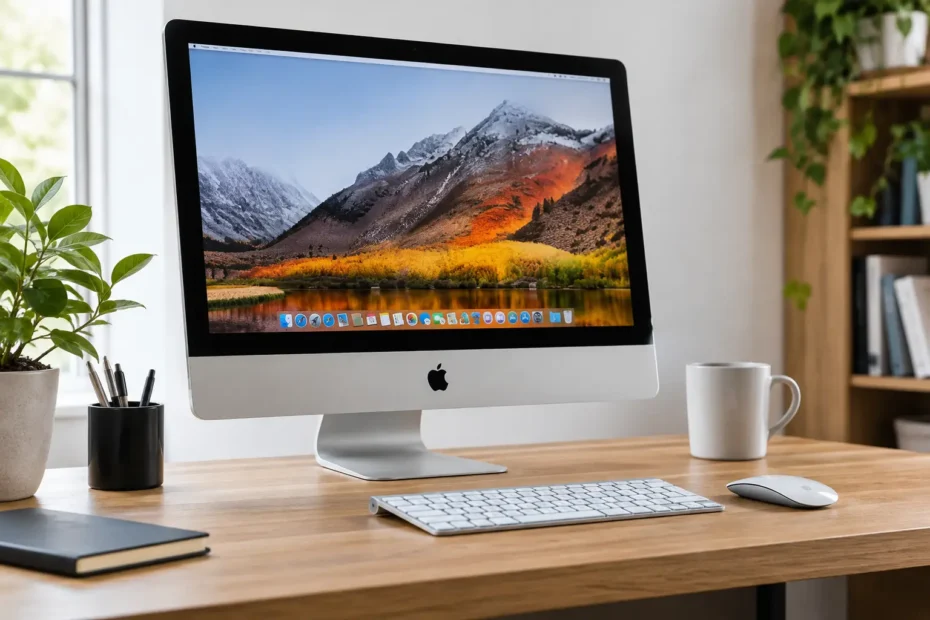
A 2012 or 2017 iMac can still be a very capable machine for office work, school, photo libraries, music, and many creative projects. The best ways to speed up old iMac computers are not usually flashy apps or a factory reset. They start with identifying the bottleneck, then deciding whether a simple cleanup, an upgrade, or a repair will make a meaningful difference.
A Mac that takes five minutes to start needs a different fix than one that runs hot, beachballs while opening files, or freezes only in one application. Spending a little time on the diagnosis first can prevent you from paying for upgrades that will not solve the real problem.
Identify What “Slow” Means on Your iMac
Start by noticing when the slowdown happens. If the iMac is slow immediately after you sign in but improves after a few minutes, too many login items or background services may be loading at once. If it becomes slow only when opening large files, importing photos, or switching between several apps, limited memory or a nearly full drive may be the issue.
A slow startup, long loading screens, and frequent spinning beachballs are especially common on iMacs with original mechanical hard drives or Fusion Drives. Those drives were reasonable when the computer was new, but modern macOS versions, browsers, and applications make far more frequent small read-and-write requests. A traditional hard drive struggles with that kind of work.
Open Activity Monitor and look for a process consistently consuming excessive CPU, memory, or disk activity. One misbehaving browser tab, cloud-sync service, or outdated utility can make an otherwise healthy iMac feel unusable. Do not delete random system files based on a cleanup app’s recommendation. The goal is to find the cause, not create a second problem.
Best Ways to Speed Up an Old iMac Before Upgrading Hardware
Keep Enough Free Storage Available
An iMac needs working room on its internal drive for virtual memory, updates, caches, and temporary files. When the drive is nearly full, performance can drop sharply. As a practical target, keep at least 15% to 20% of the internal storage free.
Move large video files, old device backups, and completed projects to a reliable external drive. Review the Downloads folder, empty the Trash, and remove applications you no longer use. Large Mail attachments and Photos libraries also deserve a look, but be careful: deleting or moving a library without confirming a backup can put important data at risk.
If your internal drive is only 128GB or 256GB, storage management can help, but it may become a constant chore. In that case, a larger SSD is often the better long-term answer.
Reduce Login Items and Background Clutter
Some software earns a place in the background. Backup tools, security software, cloud storage, and audio or design utilities may need helper processes to work correctly. Others simply add delay every time you start your iMac.
Review Login Items in System Settings or System Preferences, depending on your macOS version. Disable items you do not need at every startup, then restart and test the difference. Work slowly and make one or two changes at a time, so you know which change helped.
Be skeptical of “Mac booster” utilities that promise one-click performance. Many consume resources themselves, generate alarming but meaningless reports, or make changes that are difficult to reverse. A clean system with fewer unnecessary background processes is more useful than a dashboard full of optimization buttons.
Update Apps and Use a Lighter Browser Setup
An old version of an app can use more CPU than it should, conflict with the current macOS version, or repeatedly crash in the background. Update applications from their legitimate source and remove old browser extensions you no longer trust or use.
Browsers can be a major performance drain, especially with dozens of tabs open. Closing inactive tabs, reducing extensions, and avoiding multiple browser windows full of video calls can make a noticeable difference on older hardware. This is not a hardware fix, but it is often the fastest no-cost improvement.
The Upgrades That Make an Old iMac Feel Newer
Replace a Mechanical Drive or Fusion Drive With an SSD
For many Intel iMacs, an internal solid-state drive is the single biggest performance improvement available. An SSD reduces boot time, speeds up app launches, makes file searches more responsive, and cuts down on the pauses that make an older Mac feel unreliable.
This is especially true for iMacs that still use a spinning hard drive. A healthy hard drive can still be slow by modern standards. A failing one may cause much worse symptoms: repeated beachballs, files that take too long to open, random shutdowns, a clicking sound, or failures during updates.
An external SSD can be a useful option on some iMac models, particularly when connected through a fast port and configured properly. It is less invasive and may be a good fit for a limited budget. Internal SSD installation is generally cleaner and can offer the best result, but it requires opening the display on many slim iMac models. That work should include careful handling of the screen, proper adhesive replacement, and a check of the internal cables and drive health.
Before any drive work, make sure your data is backed up. If the current drive is showing signs of failure, do not keep restarting the iMac and hoping it improves. Every extra attempt can make data recovery more difficult.
Add Memory When Your Model Supports It
More RAM helps when the iMac slows down during multitasking. If Activity Monitor shows memory pressure in yellow or red while you use normal applications, additional memory may reduce swapping to disk and improve responsiveness.
Many 27-inch iMacs have user-accessible RAM doors, making upgrades straightforward. Other models require more involved disassembly, and some later iMacs have memory soldered to the logic board and cannot be upgraded. Memory is valuable, but it will not make an old hard drive behave like an SSD. For a machine with both limited RAM and a mechanical drive, the SSD usually delivers the more dramatic improvement first.
Address Heat, Dust, and Thermal Problems
An iMac that becomes loud and slow during basic work may be thermal throttling. Dust buildup, dried thermal compound, a weak fan, or a sensor issue can cause the processor to lower its speed to protect itself from excess heat.
Internal cleaning and thermal service are not cosmetic maintenance on an older iMac. They can restore stable performance, reduce fan noise, and help prevent heat-related damage. This is also a good time for a technician to inspect the power supply, storage drive, and logic board for early warning signs rather than waiting for a complete failure.
Choose macOS Carefully on an Older iMac
Newer macOS versions can improve security and software compatibility, but they are not automatically the best choice for every older iMac. A supported upgrade may be worthwhile when the machine has an SSD, sufficient memory, and software that requires a newer operating system. On a low-spec iMac with an original hard drive, a newer macOS version can expose hardware limitations that were already there.
Unsupported macOS installation can extend the useful life of certain older Macs, but it should be approached thoughtfully. Compatibility patches may be required after system updates, and features such as graphics acceleration, Wi-Fi, or Continuity can vary by model. It is not the right route for every business-critical computer, but it can be an excellent option when handled by someone who understands the model-specific trade-offs.
Before changing macOS versions, confirm that your essential applications, printers, plug-ins, and files will still work. A fast iMac is not helpful if it can no longer run the software you need for work.
When Slowness Is Actually a Repair Issue
Performance problems sometimes point to hardware trouble rather than normal aging. Repeated kernel panics, graphical glitches, unexpected shutdowns, no-backlight symptoms, intermittent Wi-Fi, or an iMac that runs slowly only after a liquid spill deserve professional diagnosis.
Logic board faults, failing power components, corrupted storage hardware, and damaged sensors can all produce symptoms that look like “a slow computer.” Reinstalling macOS may temporarily change behavior, but it will not repair an electrical problem. A transparent diagnosis helps you decide whether a repair, upgrade, or replacement is the sensible investment.
At YourMac.Repair, customers work directly with a specialist who can evaluate the full condition of the machine, including storage health, heat issues, and board-level concerns. That matters when an older iMac contains years of family photos, client files, or the applications your business still depends on.
Avoid Throwing Money at the Wrong Fix
A 10-year-old iMac with a good display, reliable logic board, and upgradeable storage can often serve well for years after an SSD and proper maintenance. On the other hand, a machine with expensive display damage, a failing graphics system, and limited compatibility may not be a smart candidate for a major investment.
Ask for a clear explanation of what is failing, what repair or upgrade is recommended, and what result you should realistically expect. Honest advice includes knowing when a repair-first approach makes sense and when it does not.
Before you retire an older iMac, protect the data, check the drive health, and find out what is actually holding it back. A focused repair or upgrade can turn a frustrating Mac back into a dependable computer without forcing an unnecessary replacement.
Need Mac or iPhone repair in Winter Garden / Orlando?
YourMac.Repair — board-level Apple repair with honest diagnosis and fast turnaround. We say YES when Apple says NO.
- Mac Logic Board Repair — liquid damage specialist
- Mac Screen Repair
- Mac Battery Replacement
- Mac & PC Data Recovery
- iPhone Screen Repair — same-day service
📞 (407) 580-9965 · WhatsApp · 819 Marsh Reed Dr, Winter Garden, FL 34787