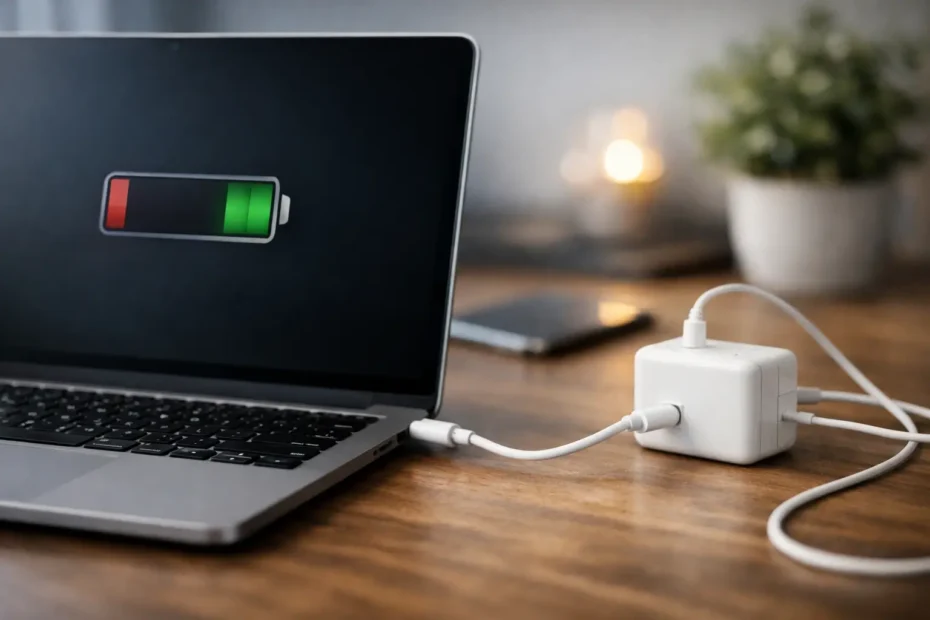
A Mac that gains only a few percentage points during a meeting, or loses battery percentage while connected to power, is not behaving normally. MacBook charging slowly causes can be as simple as an underpowered USB-C adapter or as involved as a failing battery, damaged charging circuit, or liquid-related logic board issue. The difference matters because buying a new charger will not correct an internal fault, and continuing to use a marginal charging setup can leave you with a dead Mac when you need it most.
Start With the Power Source and Adapter
The adapter needs enough wattage for the MacBook model and for what the Mac is doing at the time. A low-wattage phone or tablet charger may technically power a USB-C MacBook, but it may not charge it at a useful rate. On a larger MacBook Pro, it may only slow down battery drain while you are editing video, running external displays, compiling code, or using demanding business software.
Not every USB-C power adapter is equal. A quality USB-C Power Delivery adapter can work well when it provides the right wattage, but inexpensive adapters sometimes fail to negotiate proper power or deliver less than their label claims. For MagSafe-equipped models, inspect both the power brick and the MagSafe connector. A damaged cable near the strain relief, a loose connector, or visible discoloration is reason to stop using it.
Plug the adapter directly into a known-good wall outlet for testing. Power strips, extension cords, travel adapters, and worn outlets can introduce another variable. If charging improves immediately at the wall with a known-good, correctly rated Apple or reputable USB-C PD adapter, the Mac itself may be fine.
The cable can be the bottleneck
USB-C cables are not interchangeable in practice. Some are intended primarily for data or low-power charging. Others are rated for higher-wattage Power Delivery. A cable with internal damage may connect and disconnect, charge intermittently, or limit charging speed without showing obvious exterior damage.
Test one component at a time: the wall outlet, adapter, cable, and charging port. Swapping everything at once may make the problem disappear temporarily, but it does not tell you what failed. That distinction saves money and prevents a repeat problem.
Why Your MacBook Is Charging Slowly While in Use
A MacBook does not send all incoming power straight to the battery. It first has to run the computer. If the Mac is under a heavy workload, much of the adapter’s power is being used by the display, processor, graphics system, storage, and connected accessories.
This is common with older Intel MacBook Pros, which can draw substantial power under load, but Apple silicon models can also charge slowly when connected to several bus-powered devices or high-resolution external displays. A 30W adapter might be adequate for a light-duty MacBook Air, yet insufficient when the same laptop is charging through a dock and running a full workstation setup.
Heat also changes charging behavior. Lithium-ion batteries charge more cautiously at high temperatures to protect the cells. If the Mac is hot from direct sun, a blocked vent, gaming, rendering, or a cooling system problem, macOS may reduce or pause charging until temperatures come down. A Mac that is hot, loud, and slow to charge deserves attention rather than being left on the charger overnight.
Try a practical test. Shut down the Mac, let it cool for 20 to 30 minutes, connect the correct charger directly to the wall, and leave all hubs and accessories disconnected. If it charges normally while off or asleep but barely charges while running, adapter wattage, workload, heat, or accessory power draw is likely part of the picture.
Battery Health and Optimized Charging
A worn battery can make charging seem unpredictable. As batteries age, they lose capacity and may develop higher internal resistance. That can lead to slow charging, rapid percentage changes, unexpected shutdowns, or a battery that reaches a percentage but will not hold it for long.
Check Battery Health in macOS. The wording varies by macOS version, but a service recommendation or significantly reduced maximum capacity points toward battery replacement. Cycle count is useful context, though it is not the entire diagnosis. A battery can fail before reaching a high cycle count, especially after heat exposure, swelling, age, or liquid damage.
Optimized Battery Charging is another common source of confusion. This macOS feature may intentionally hold charging near 80% when it predicts the Mac will remain plugged in for extended periods. That behavior is designed to extend battery lifespan. It is not a fault if the Mac pauses near 80%, later completes charging based on your routine, and otherwise charges normally.
The trade-off is simple: battery health features favor long-term battery condition over reaching 100% as quickly as possible. If the Mac is stuck well below 80%, takes many hours to gain a small charge, or drops percentage while connected to the proper adapter, look beyond optimized charging.
Charging Ports, Debris, and Physical Damage
A USB-C or MagSafe port can look clean and still have a problem. Dust, lint, oxidation, bent contacts, or a partially damaged port can interfere with the power connection. Repeated plugging, side impacts, and moisture exposure are common causes.
Look for a connector that feels loose, requires being held at an angle, gets unusually hot, or only charges from one side of a USB-C MacBook. Those signs are not normal. Avoid scraping inside a port with metal tools or spraying liquids into it. A damaged pin or shorted port can turn a small charging complaint into a board-level repair.
For models with multiple USB-C ports, test each port with the same known-good charger and cable. Results matter. If one port works normally and another does not, the issue may be isolated to that port or its related circuitry. If no port charges reliably, the diagnosis needs to go deeper.
Software Issues Can Affect What You See
macOS occasionally reports battery status incorrectly after an update, a crash, or a power-management error. Restarting the Mac and installing current macOS updates can resolve minor reporting problems. Apple silicon Macs handle many power-management functions automatically after a restart. Some Intel models may benefit from an SMC reset, following the correct procedure for that specific model.
However, software troubleshooting has limits. A restart cannot repair a depleted battery cell, burned charging component, corroded circuit, or failing USB-C controller. Be cautious with generic advice that treats every slow-charge complaint as a settings problem.
Open System Information and review the Power section if you are comfortable doing so. It can show whether the adapter is detected, what wattage the Mac sees, battery condition, and cycle count. If the adapter is recognized at unexpectedly low wattage, that points back toward the adapter, cable, dock, or charging negotiation. If a correct adapter is detected but charging remains erratic, internal hardware becomes more likely.
When Slow Charging Points to a Hardware Fault
Some MacBook charging slowly causes require component-level diagnosis. This is especially true when the issue began after a spill, power surge, drop, failed third-party charger, or port damage. Liquid residue can corrode charging components gradually, so a Mac may appear fine for weeks before charging becomes unreliable.
Logic board faults can affect the charging controller, USB-C power delivery circuitry, battery communication lines, or power rails that regulate incoming voltage. On certain models, a failing USB-C controller can cause charging on only one side, repeated connect-disconnect behavior, no charging with known-good equipment, or a message that the battery is not charging.
Do not ignore a swollen battery. A lifting trackpad, separating bottom case, bowed palm rest, or uneven case seam can indicate battery expansion. Stop charging and arrange service promptly. Swollen batteries can damage the trackpad, keyboard, display, and internal components, and they should be handled safely.
A proper diagnosis separates a battery issue from a board issue before recommending a repair. That is where an experienced independent specialist can provide real value. At YourMac.Repair, Eduardo evaluates the charging path, battery condition, ports, and board-level behavior rather than assuming a full logic board replacement is the only answer.
A Sensible Next Step
First verify the outlet, correct-wattage adapter, and cable. Then test the Mac while cool, with accessories disconnected and little to no workload. If it still charges slowly, only charges at an angle, becomes hot at the connector, reports battery service, or has any history of liquid exposure, stop guessing. A clear diagnosis protects your files, avoids unnecessary parts, and gives you a realistic path back to a Mac you can rely on.
Need Mac or iPhone repair in Winter Garden / Orlando?
YourMac.Repair — board-level Apple repair with honest diagnosis and fast turnaround. We say YES when Apple says NO.
- Mac Logic Board Repair — liquid damage specialist
- Mac Screen Repair
- Mac Battery Replacement
- Mac & PC Data Recovery
- iPhone Screen Repair — same-day service
📞 (407) 580-9965 · WhatsApp · 819 Marsh Reed Dr, Winter Garden, FL 34787