Dust in an iMac is not just a cosmetic issue. When it builds up around the vents, fan, heat sink, and power supply, your Mac may run hotter, get louder, slow down under load, or shut down unexpectedly. Knowing how to clean dust from iMac safely can help protect a computer that still has years of useful life left.
The catch is that iMacs are not designed like desktop towers. The display is the front cover, internal cables are delicate, and the correct opening method varies by model. A careful external cleaning routine is safe for most owners. Internal cleaning can be worthwhile, but it is not always a good DIY job.
Start With the iMac Powered Off
Shut down the iMac completely, unplug the power cord, and let the computer sit for several minutes before cleaning. Do not clean it while it is sleeping or connected to power. If the Mac has been running hot, give it time to cool first.
Move it to a clean, well-lit table. Lay a soft towel down if you plan to tilt the iMac back slightly to inspect the bottom edge or stand. Avoid working over carpet, where static electricity and loose fibers can make the job messier.
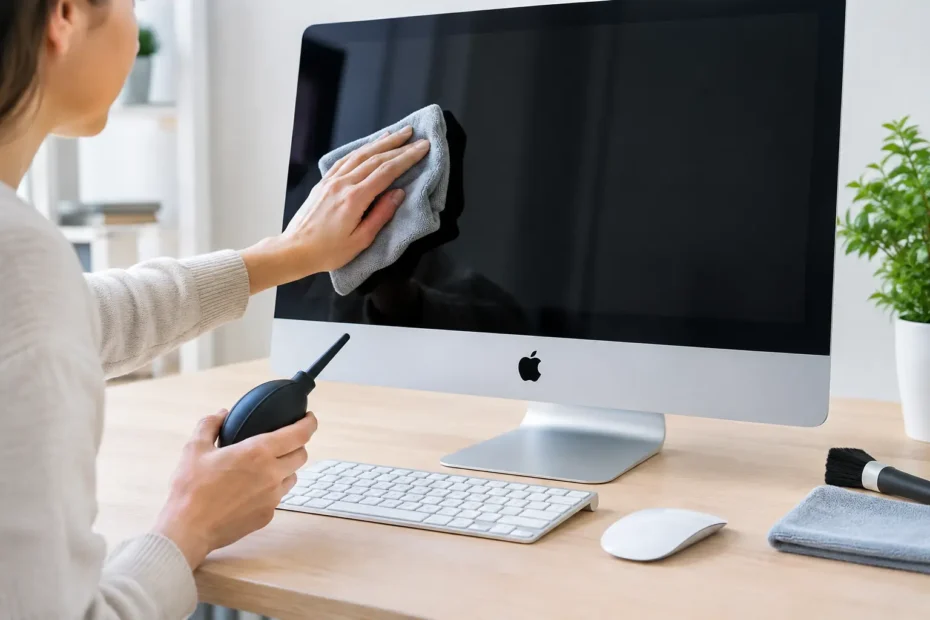
For exterior cleaning, you need very little: a clean microfiber cloth, a soft detailing brush, and optionally a hand-squeezed air blower. A small electronic-safe compressed-air can may help with vents, but it must be used carefully.
Never spray cleaner directly on the screen, vents, ports, or rear housing. Liquid can travel where it should not, especially around the lower display edge and port openings.
How to Clean Dust From iMac Vents and Exterior
Most of the dust you can safely remove is on the outside. Start with a dry microfiber cloth and wipe the rear enclosure, stand, bottom edge, and the area around the ports. Use light pressure. The aluminum housing does not need aggressive scrubbing, and a dry cloth prevents moisture from reaching openings.
The intake and exhaust vents deserve more attention. Their location depends on the model. Many iMacs draw air through a long vent along the bottom edge and exhaust warm air through a rear vent near the top. Some older models have a removable RAM access door or additional openings near the bottom.
Use a soft brush to loosen dust at the vent openings. Then use short, controlled bursts of compressed air held several inches away. Keep the can upright. Tilting it can release cold propellant, which may leave residue or expose components to rapid temperature change.
Do not push the straw deep into a vent, and do not blast air continuously. Strong air pressure can drive dust farther into the machine rather than pulling it out. A few brief bursts, followed by another pass with the brush, are more effective.
A household vacuum is not the right tool for iMac vents. It can create static electricity and its nozzle can scratch the enclosure or pull at loose material. If you need to collect dust after brushing, vacuum the table or the brush away from the computer, not the Mac itself.
Cleaning the Display Without Streaks
For the glass display, start dry. A clean microfiber cloth removes ordinary dust without leaving marks. Wipe gently in broad strokes rather than pressing hard in one spot.
If fingerprints or smudges remain, lightly dampen one corner of the cloth with water. The cloth should be barely moist, never wet. Wipe the display, then immediately use a dry part of the cloth to remove any remaining moisture.
Avoid window cleaner, paper towels, abrasive cloths, and cleaners containing ammonia or solvents. They can damage coatings, leave haze, or create fine scratches that are especially noticeable on a large iMac screen.
When External Dusting Is Not Enough
An iMac may need internal cleaning when the fans are consistently loud, the enclosure feels unusually hot, performance drops during normal work, or the Mac shuts down under heavy use. Video editing, design work, gaming, virtual machines, and long Zoom sessions can reveal a cooling problem that basic web browsing hides.
Dust is only one possible cause. Aging thermal compound, a failing fan, a blocked heat sink, a damaged temperature sensor, or logic board trouble can create the same symptoms. That is why cleaning should not be treated as a guaranteed fix for overheating.
You can check for obvious warning signs before assuming the problem is dust. Notice whether the fan noise starts immediately after startup, only under load, or after the iMac has been on for an hour. If the Mac reports a fan error, runs slowly even when cool, shows display artifacts, or has a history of liquid exposure, it needs diagnosis rather than more air through the vents.
Should You Open an iMac to Clean Inside?
It depends on the model and your repair experience. Older iMacs with glass panels held by magnets are more straightforward to open than thin iMacs released from 2012 onward. On many newer models, the display is secured with specialized adhesive strips and connected by fragile display and power cables.
Opening one of these machines incorrectly can crack the display, tear a cable, compromise the adhesive seal, or leave the screen misaligned when it is reassembled. A replacement display can cost far more than a professional cleaning service.
If you are experienced with electronics repair, use the correct opening tools, replacement adhesive strips made for the specific iMac model, ESD precautions, and a reliable service guide for that exact year and screen size. Photograph cable routing before disconnecting anything. Keep screws organized by location, since similar-looking screws can have different lengths.
Once open, internal dust should be removed with a soft ESD-safe brush and low-pressure air. The fan blades should be held still while cleaning. Letting a fan spin freely from an air blast can overspeed the bearing or create an electrical charge that is not good for the board.
Do not scrape dust from the logic board, use a wet cloth inside the iMac, or apply oil to a noisy fan. A fan that grinds, clicks, or fails diagnostics should be replaced. Cleaning will not repair worn bearings.
The Power Supply Is Not a DIY Cleaning Area
The power supply inside an iMac can retain a dangerous electrical charge even after the computer is unplugged. It should not be opened or handled casually. This is one of the reasons internal iMac cleaning is better left to a qualified Mac technician when the dust buildup is heavy or the machine is already showing heat-related symptoms.
A proper internal service does more than blow out dust. It includes checking fan operation, inspecting the heat sink, looking for corrosion or liquid damage, assessing thermal compound where appropriate, and making sure the display is resealed correctly. For an older iMac, that service can be a practical way to extend its life instead of replacing a capable computer.
Build a Cleaning Routine That Prevents Buildup
How often an iMac needs attention depends on where it lives. A Mac in a clean office may only need exterior vent cleaning every few months. A computer near pets, open windows, construction dust, a kitchen, or a busy workshop may need it monthly.
Keep the iMac on a hard, stable surface with open space behind it. Do not push the rear vents against a wall, place papers behind the stand, or drape a cloth over the computer when it is running. Good airflow reduces both dust accumulation and operating temperature.
If you use the iMac for work that cannot stop, pay attention to changes rather than waiting for a shutdown. A gradual increase in fan noise is often the earliest sign that service is worth scheduling. For Central Florida Mac owners who want a direct assessment before risking an expensive display, YourMac.Repair can inspect the cooling system, clean it correctly, and explain what the Mac actually needs.
A quiet iMac is not always a perfectly clean iMac, but a Mac that stays cool, runs consistently, and has clear airflow is far less likely to surprise you in the middle of important work.
Need Mac or iPhone repair in Winter Garden / Orlando?
YourMac.Repair — board-level Apple repair with honest diagnosis and fast turnaround. We say YES when Apple says NO.
- Mac Logic Board Repair — liquid damage specialist
- Mac Screen Repair
- Mac Battery Replacement
- Mac & PC Data Recovery
- iPhone Screen Repair — same-day service
📞 (407) 580-9965 · WhatsApp · 819 Marsh Reed Dr, Winter Garden, FL 34787